

Turn on the public link
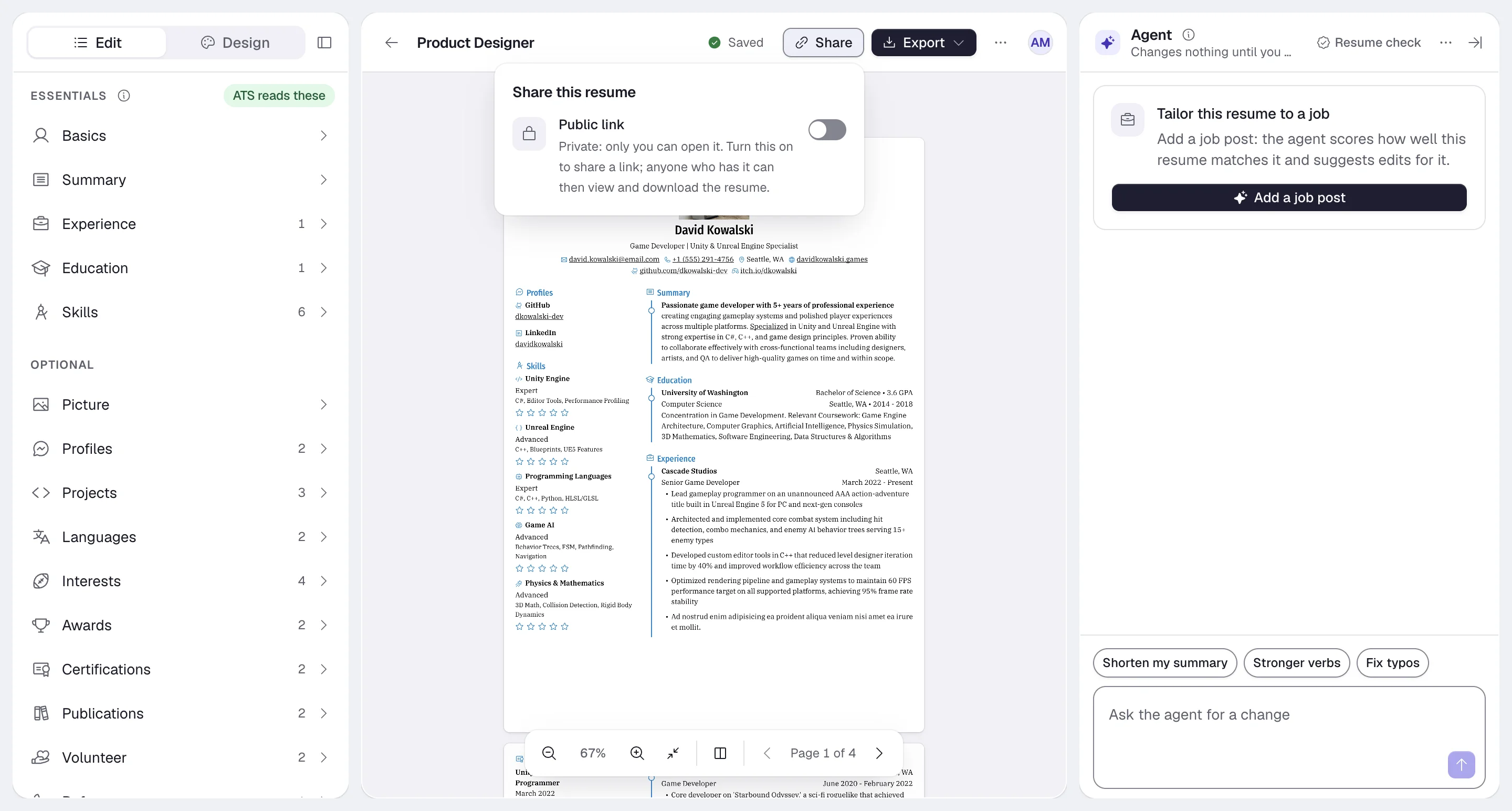
1
Open Share
In the builder, select Share in the header. The Share this resume popover opens. On a phone, open the … menu and choose Share. The same controls are also under Design > Sharing.
2
Turn on Public link
Switch on Public link. The text under it changes to “Anyone with the link can view and download this resume.”
3
Copy the link
Select Copy next to the Link field. Select Open public page to see what visitors see.
You need a username before a resume can have a link. If you don’t have one, Share shows “Add a username in Settings ▸
Profile to get a link for this resume.” See Updating your profile.
What visitors see
- Your resume as it is right now, with every change you have made. There’s no separate publish step.
- Print and Download PDF buttons.
- A “Made with Hiresweep” footer.
Add a password
A password keeps the link working only for people you give the password to.1
Open Share
The Public link must be on.
2
Add a password
Select Add a password. In Password for the link, enter 6 to 64 characters and select Set password.
3
Send the password separately
Share it through another channel than the link, for example a direct message.
Statistics
Open Design > Statistics in the builder:
Your own visits and downloads aren’t counted while you’re signed in. Hiresweep counts visits, not who visited.
While a resume is private, Statistics shows “Track your resume’s views and downloads” instead. On Resumes, the Public resumes card lists the views and downloads of each public resume.
Turn the link off
Switch off Public link. The link then shows “not found” to everyone except you, and links you have sent stop working right away. If you turn it back on, the same link works again.Change the link
The link uses your username and the resume’s slug.- To change the slug, choose Rename and details… in the resume’s menu on Resumes or in the builder’s Resume actions menu. Editing the name also rewrites the slug.
- To change the username, see Updating your profile.
Ideas for using the link
Profiles and signatures
Profiles and signatures
Add the link to your LinkedIn Featured section, your email signature or your personal website. It always shows
your latest resume.
Applications
Applications
Use the link where a form accepts one. When a form asks for a file, upload a PDF instead; see Exporting your
resume.
Events
Events
Turn the link into a QR code for networking events. Update the resume beforehand and everyone gets that version.
A confidential search
A confidential search
Add a password and give it only to the recruiters you are talking to.