Change the template
1
Open the Design tab
In the builder, select the Design tab at the top of the Edit panel. Template is the first group.
2
Open the Template Gallery
The group shows your current template’s preview, name, description and tags. Select the preview (Change template) to open the Template Gallery.
3
Pick a template
Select a template. The gallery closes and the preview updates.
4
Review the result
Check how your content flows in the new design. You may want to adjust the layout, fonts or colors afterwards.
ATS-friendly templates
Templates marked ATS-friendly in the gallery use plain, single-flow text with standard headings, so applicant tracking systems read every section in order. Prefer one of these when you apply through online portals.All templates
New resumes start with Ridge. The sample resume uses Beacon.
All templates support the same sections and settings. They differ only in how they present your content. You can also browse them without signing in at hiresweep.com/templates.
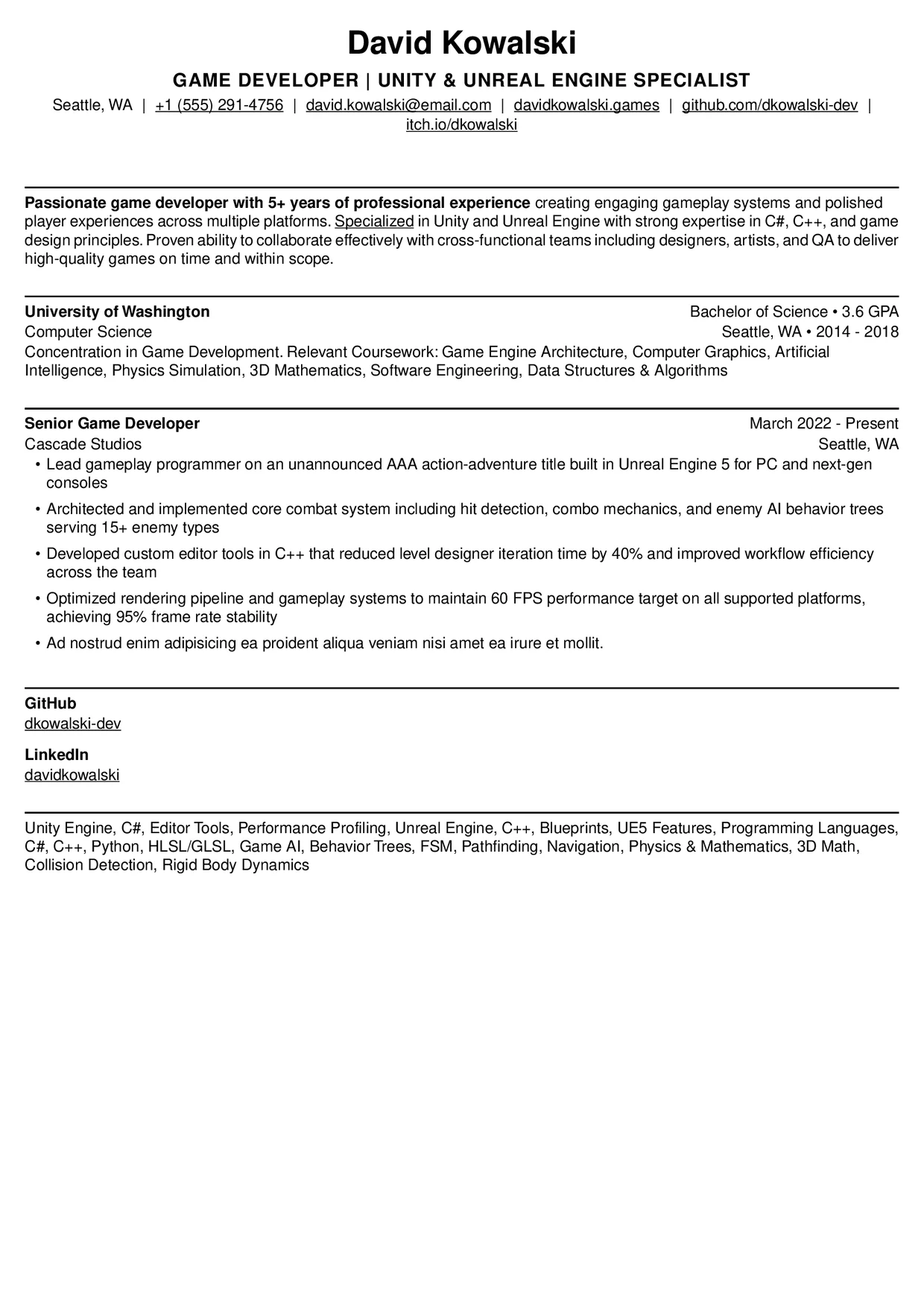
Compass
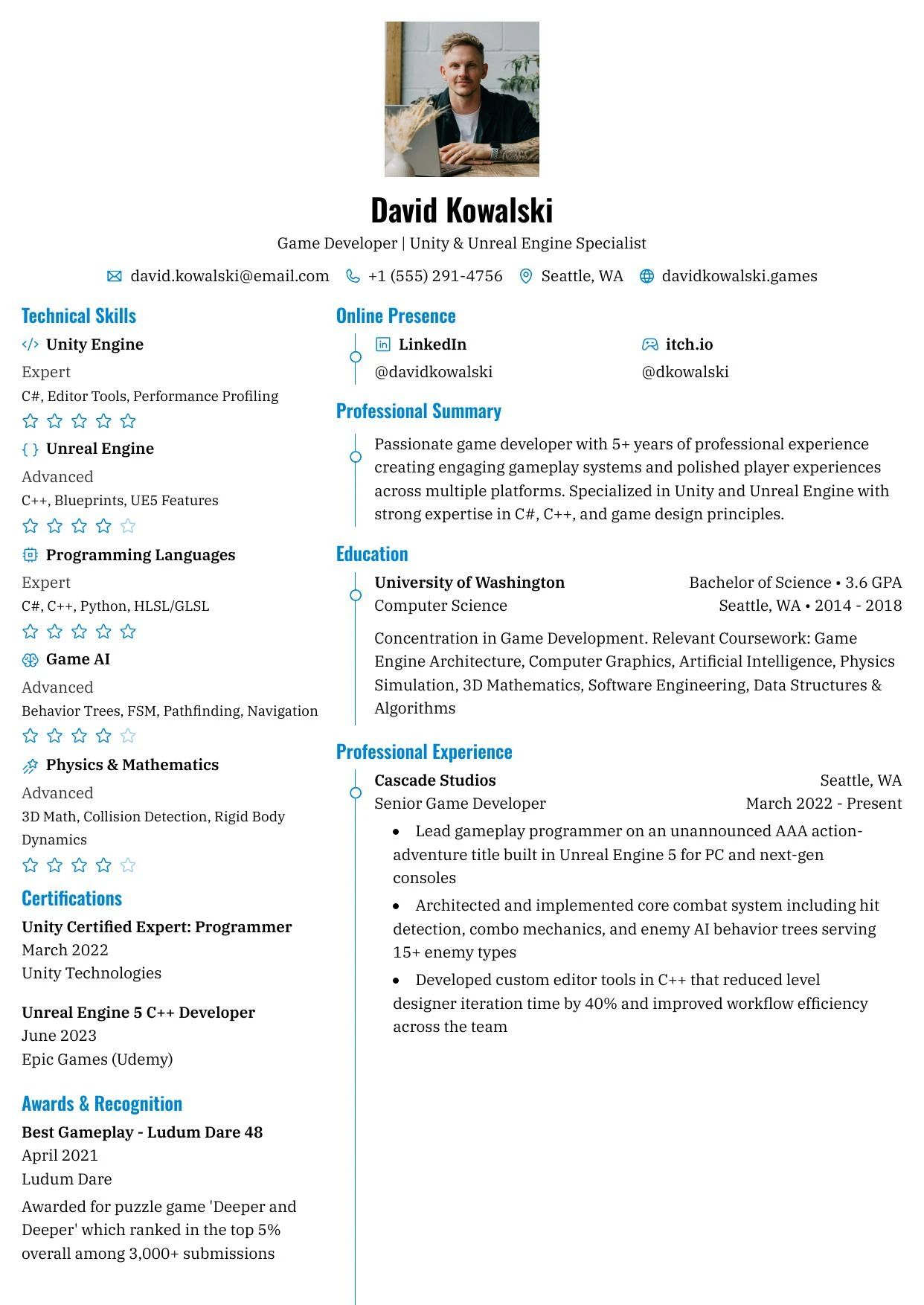
Beacon
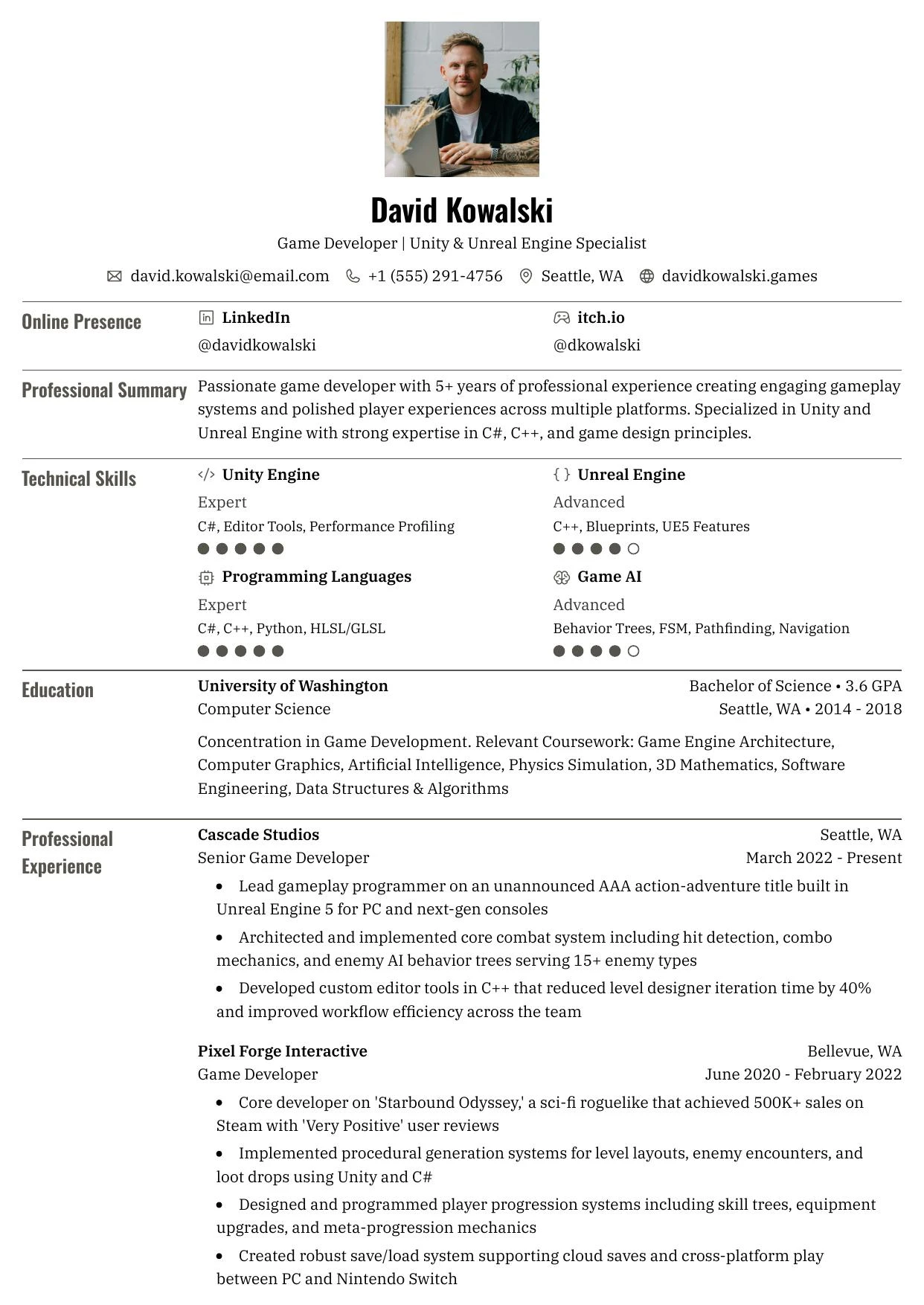
Bastion
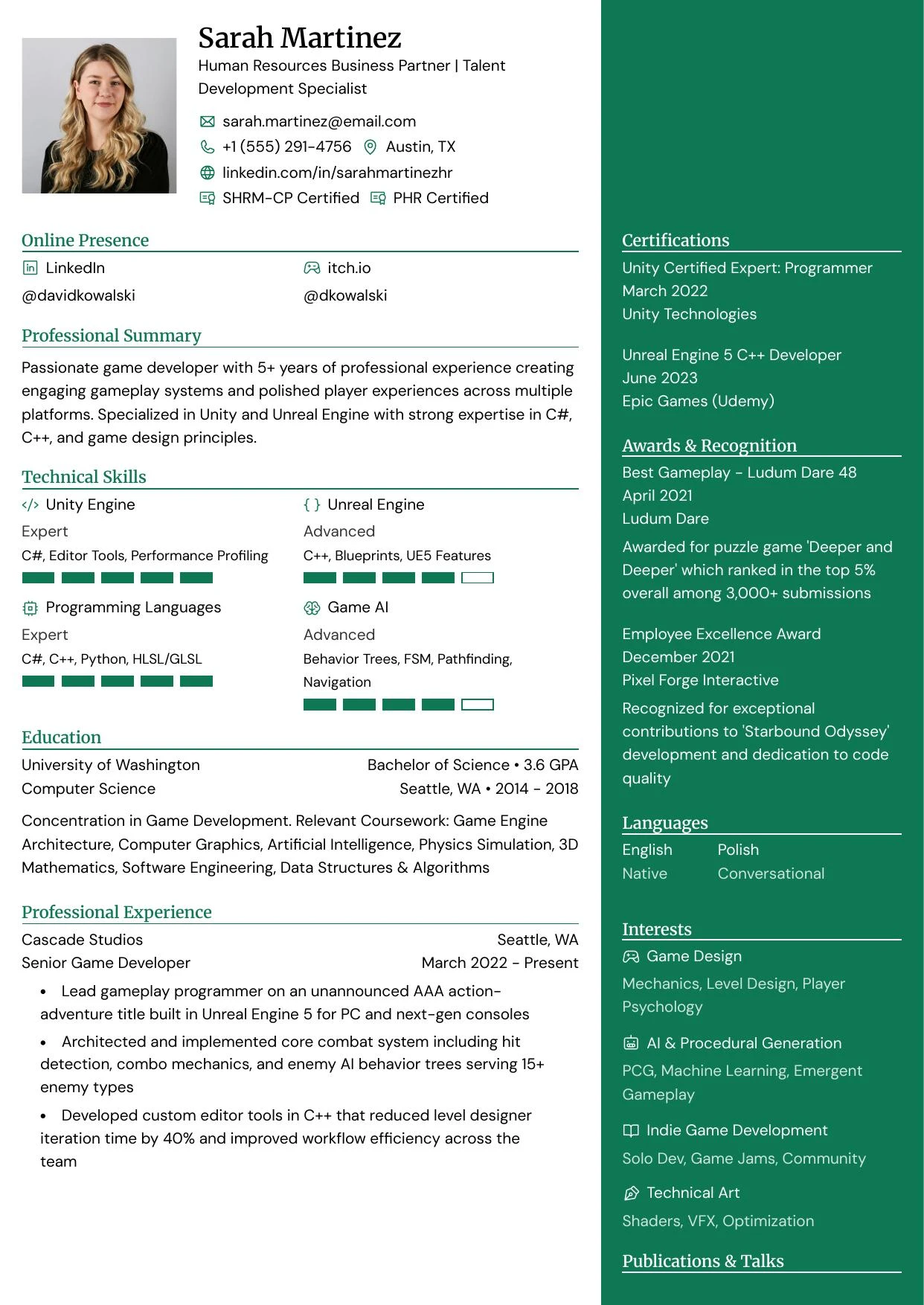
Haven
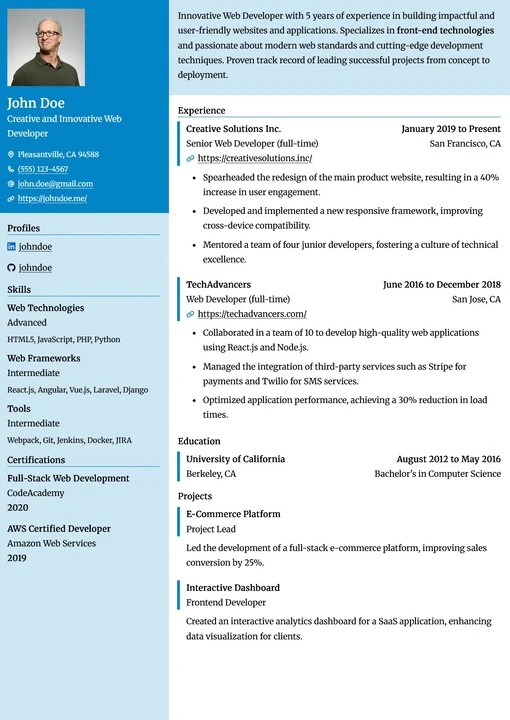
Summit
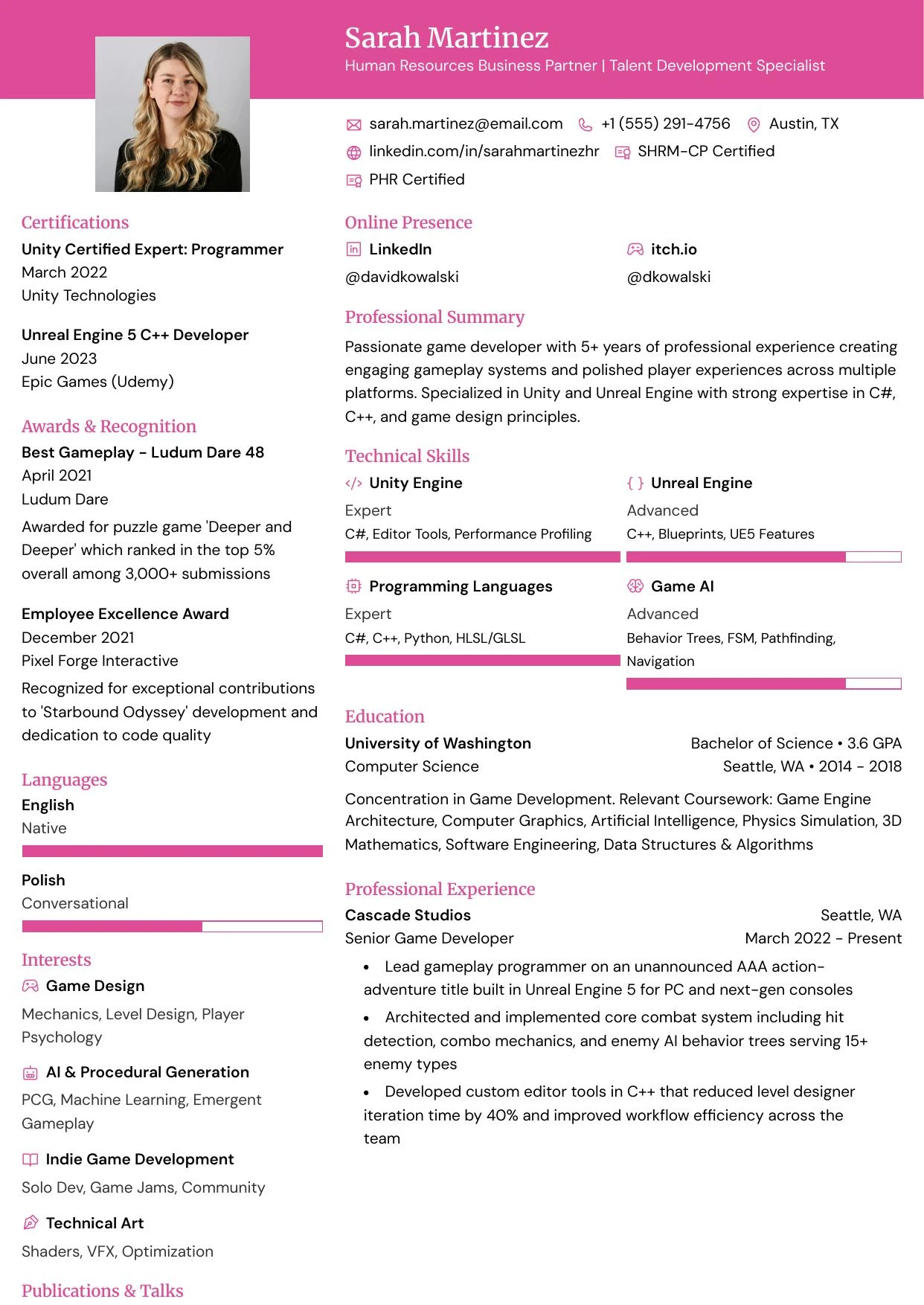
Atlas
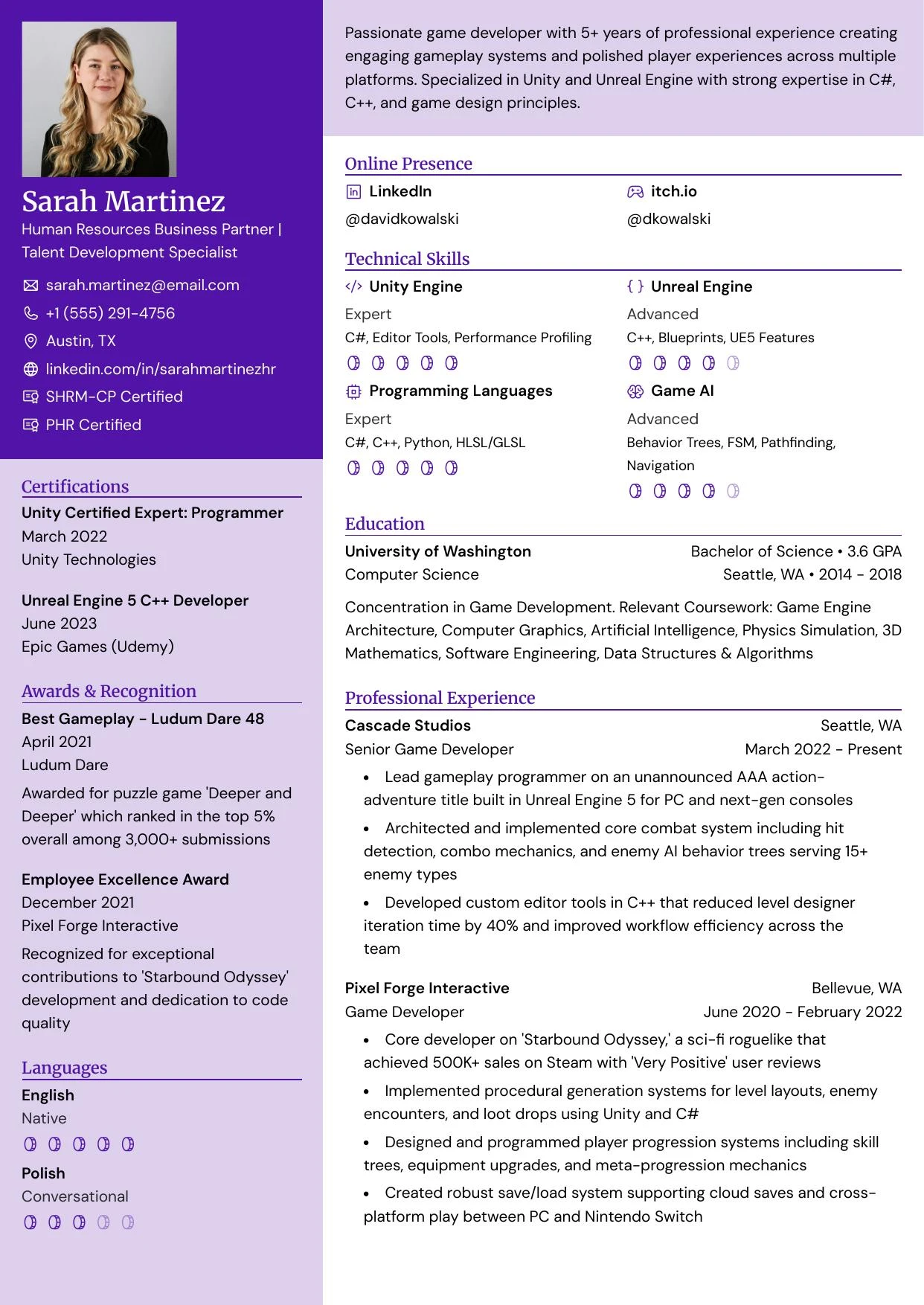
Meridian
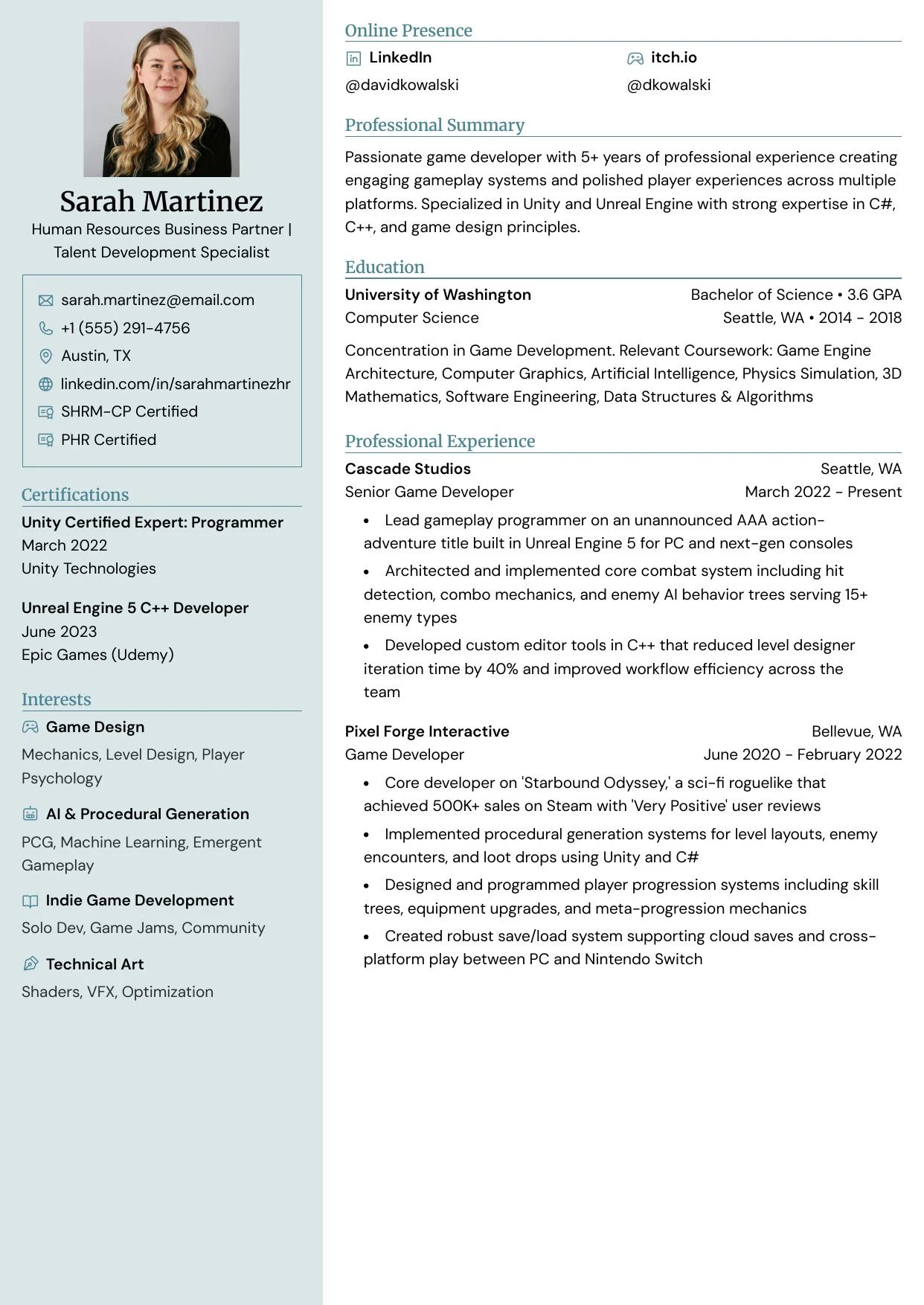
Cardinal
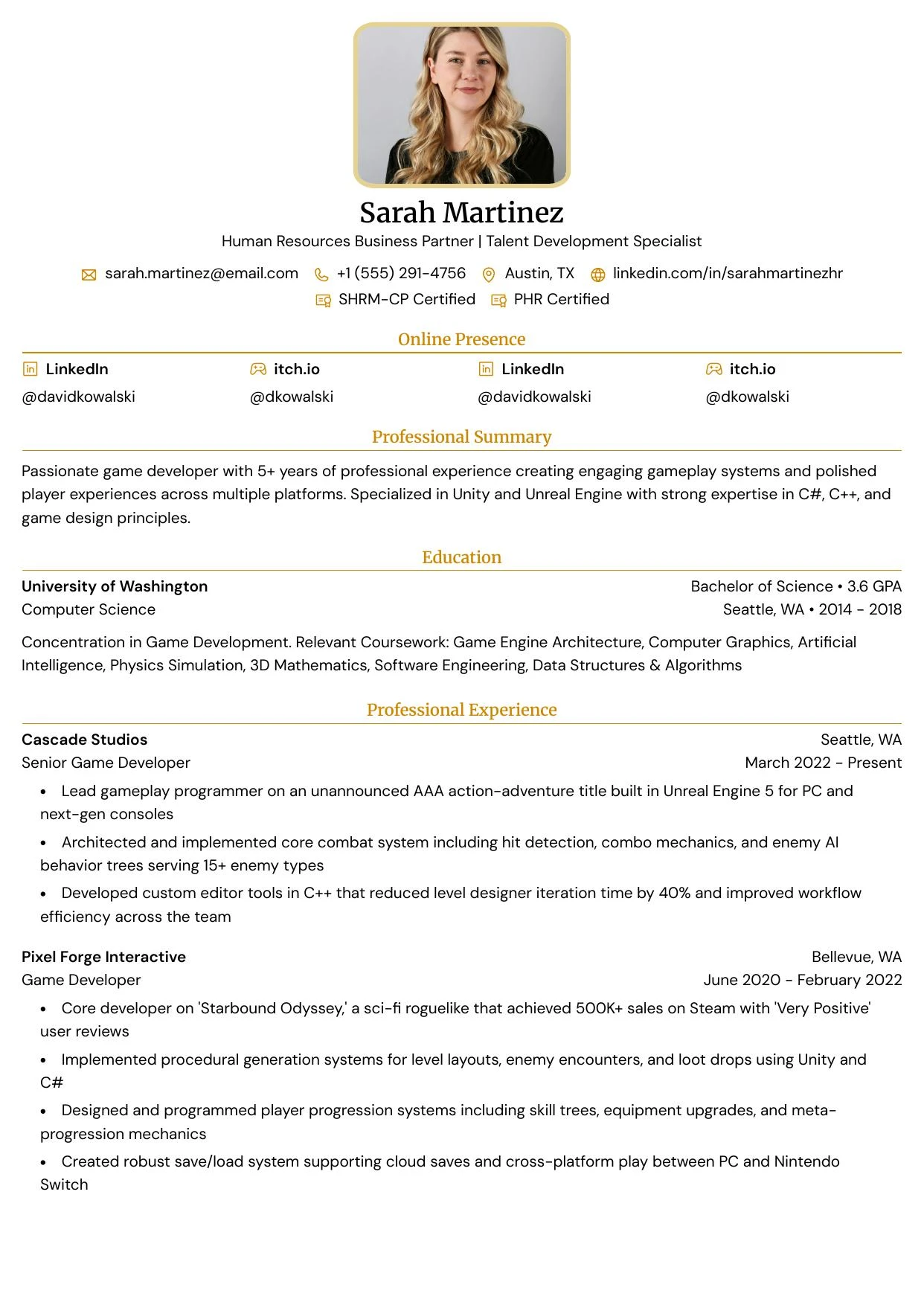
Cove
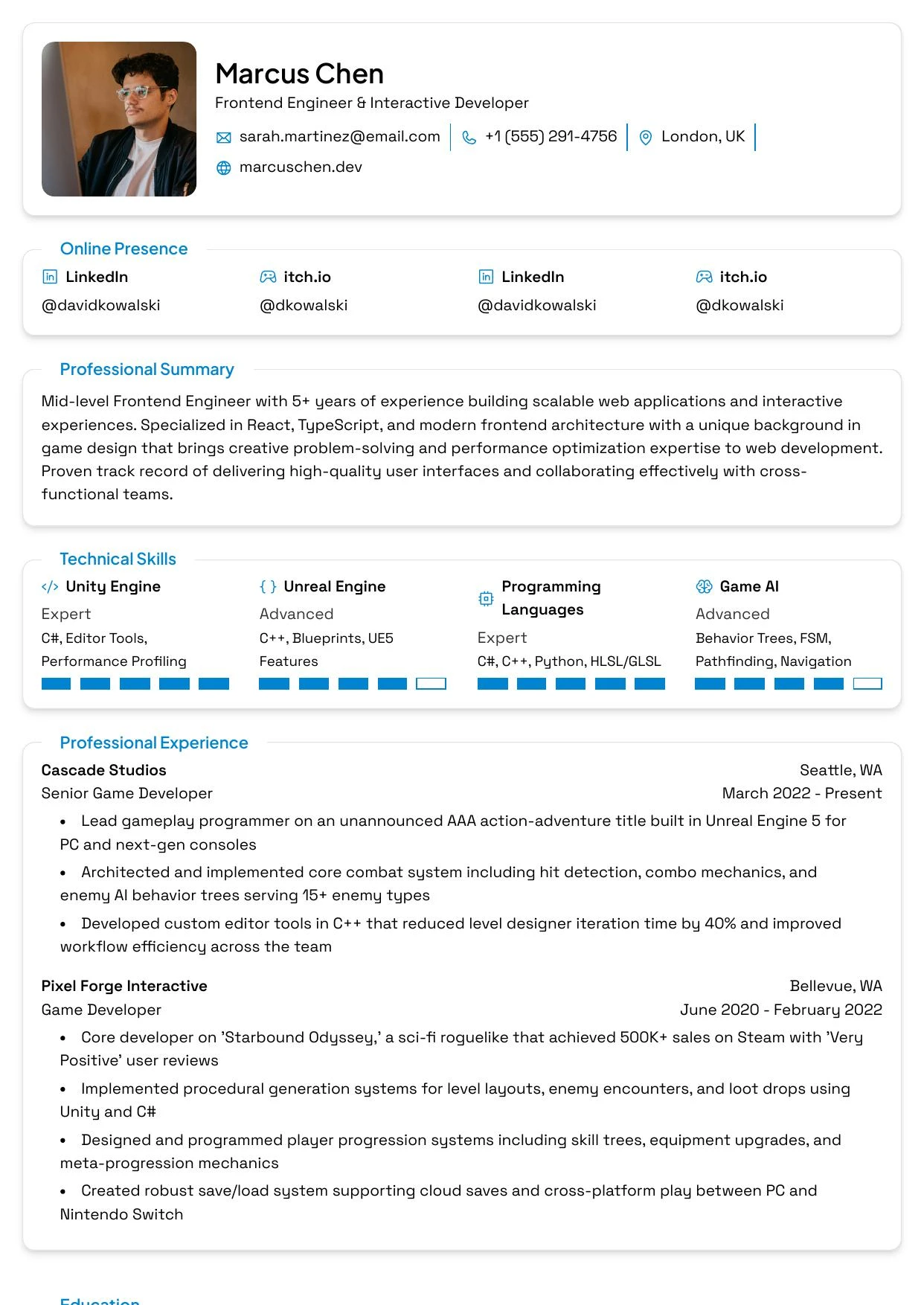
Vantage
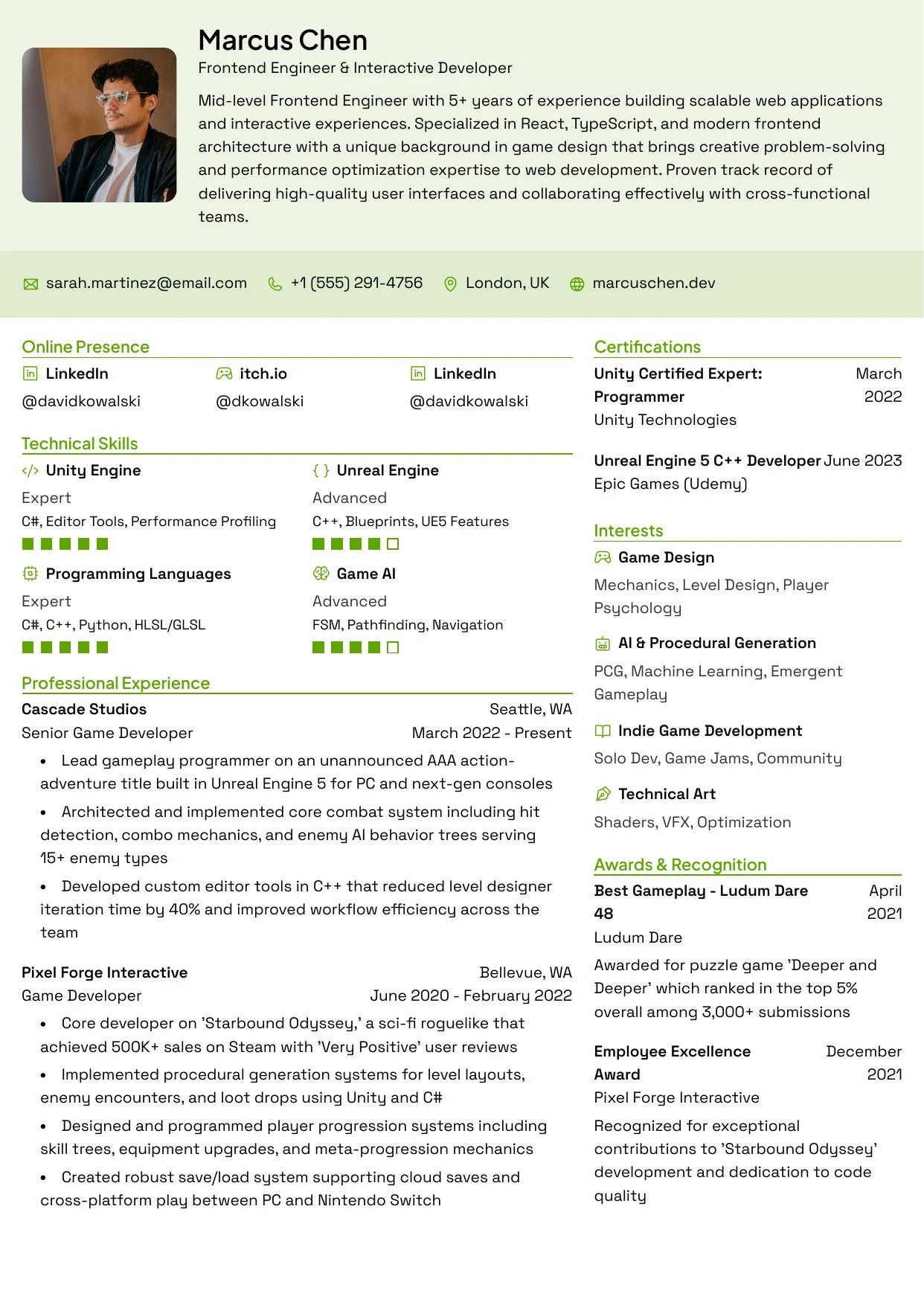
Grove
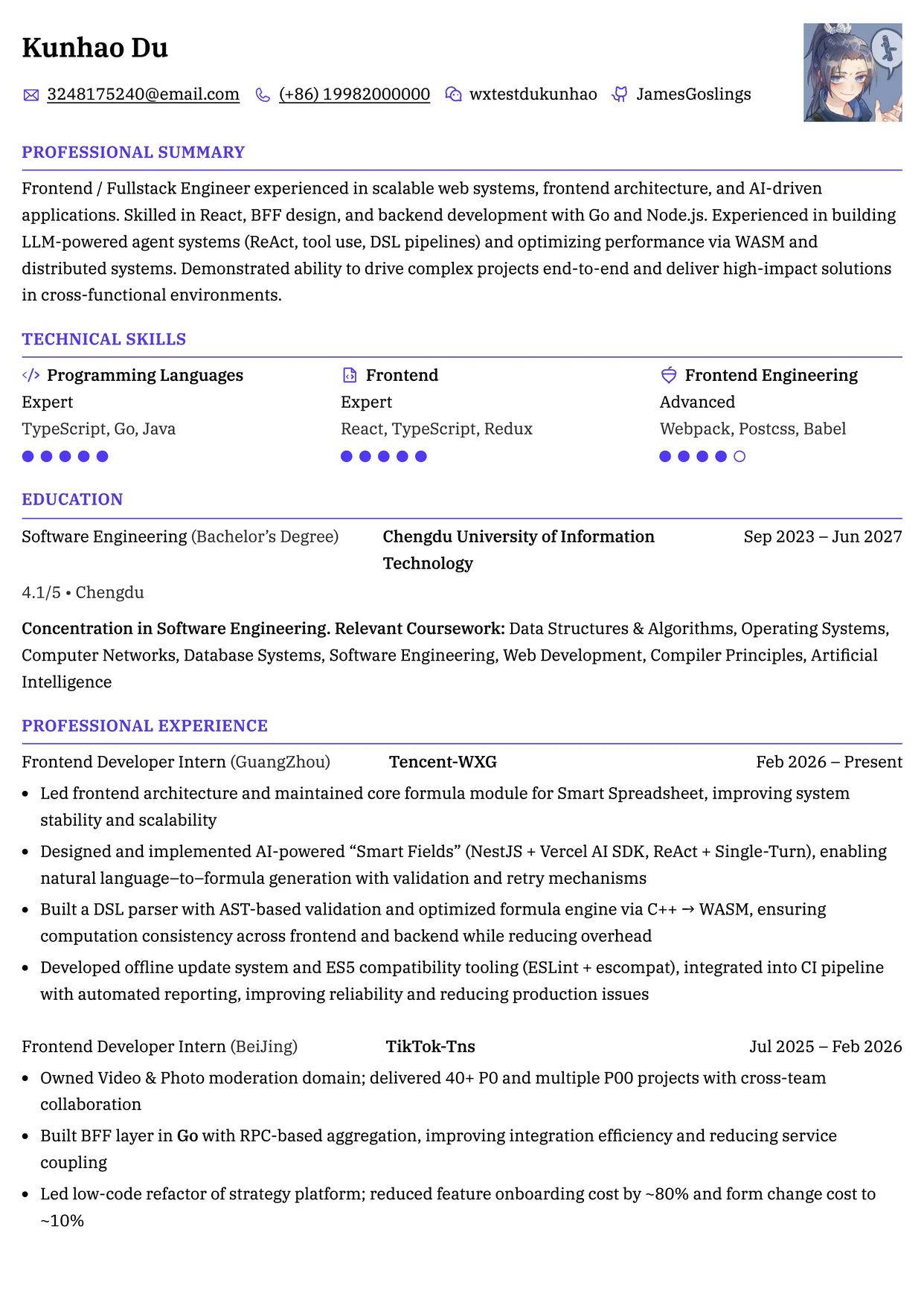
Tide
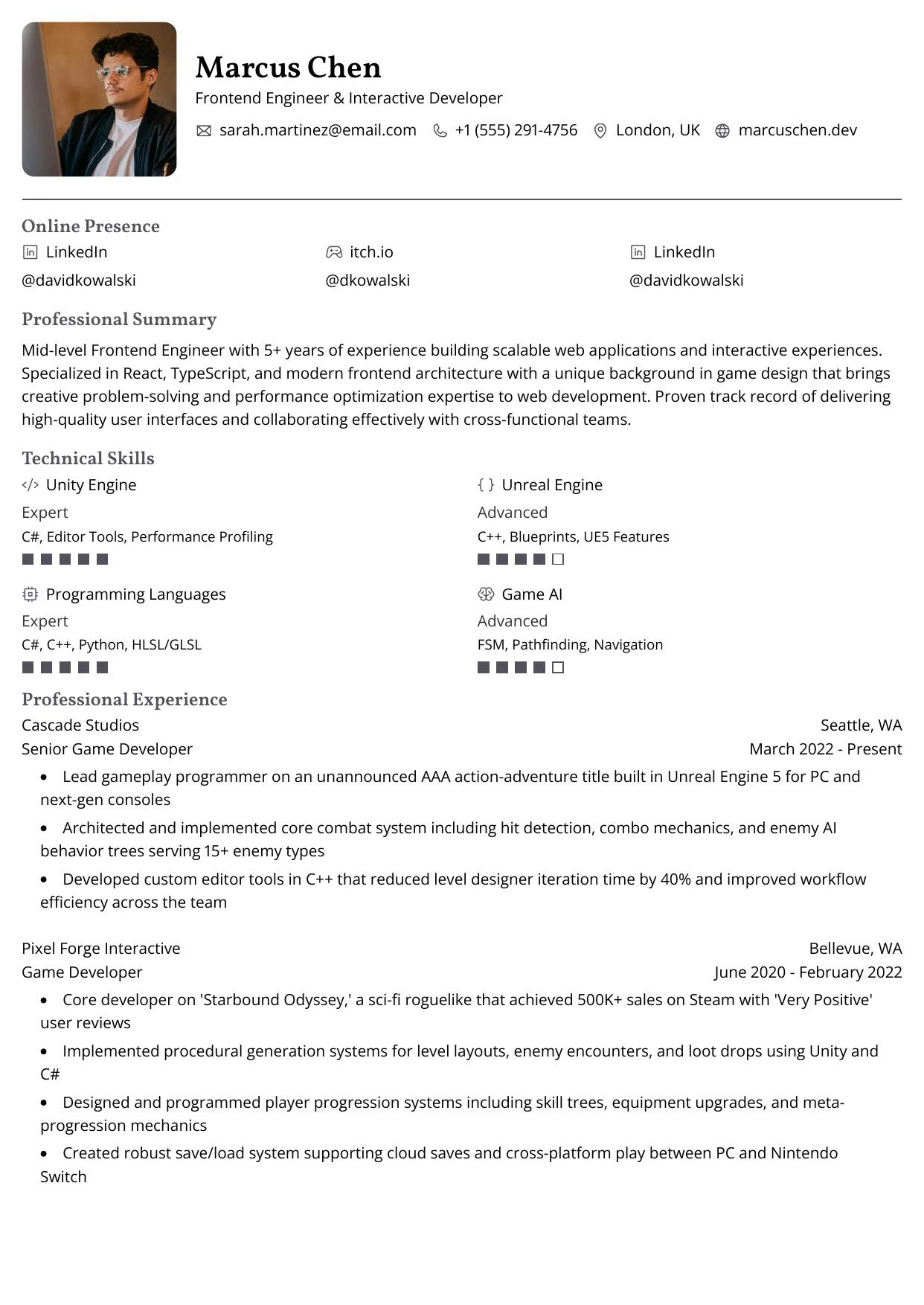
Ridge
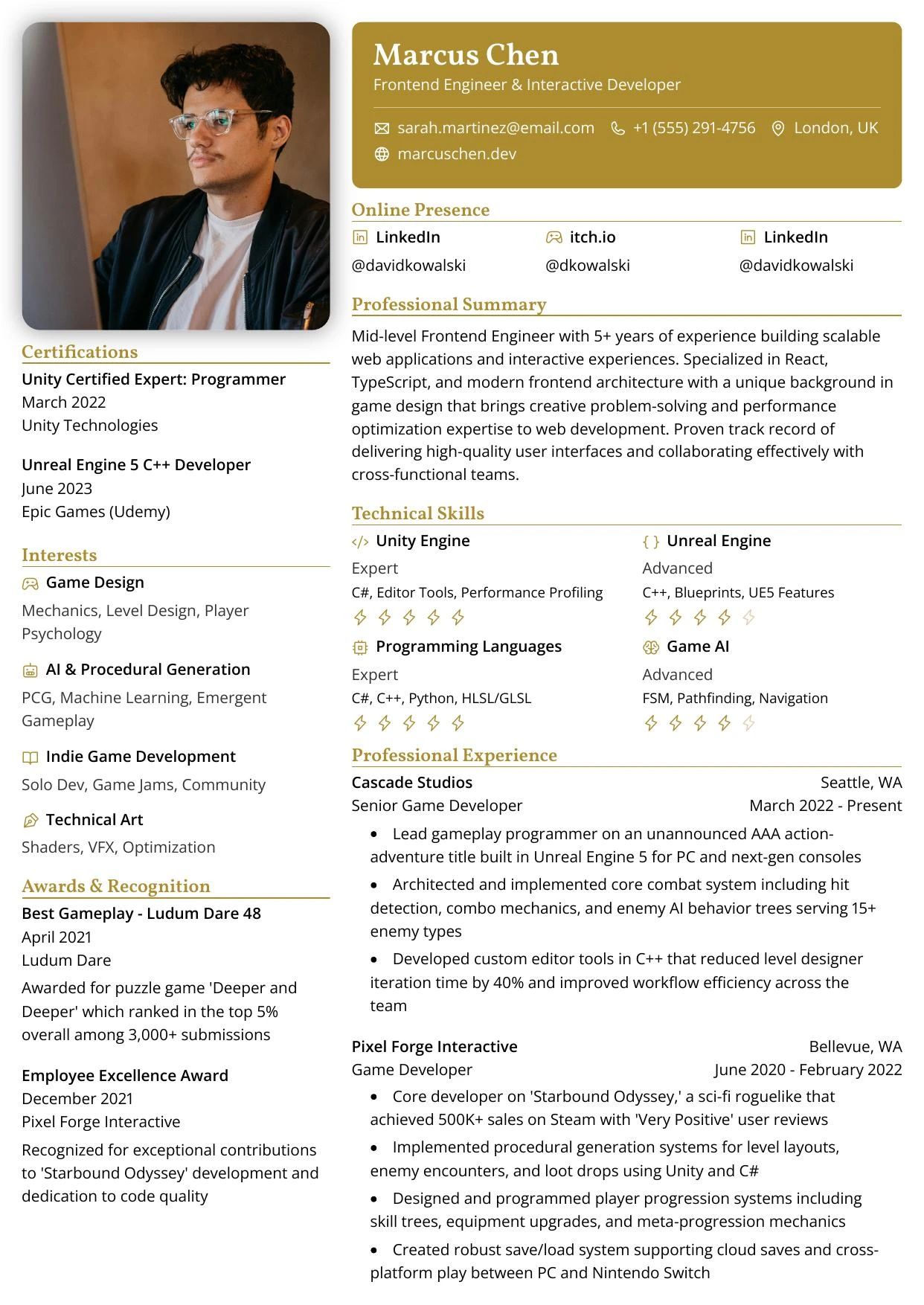
Drift
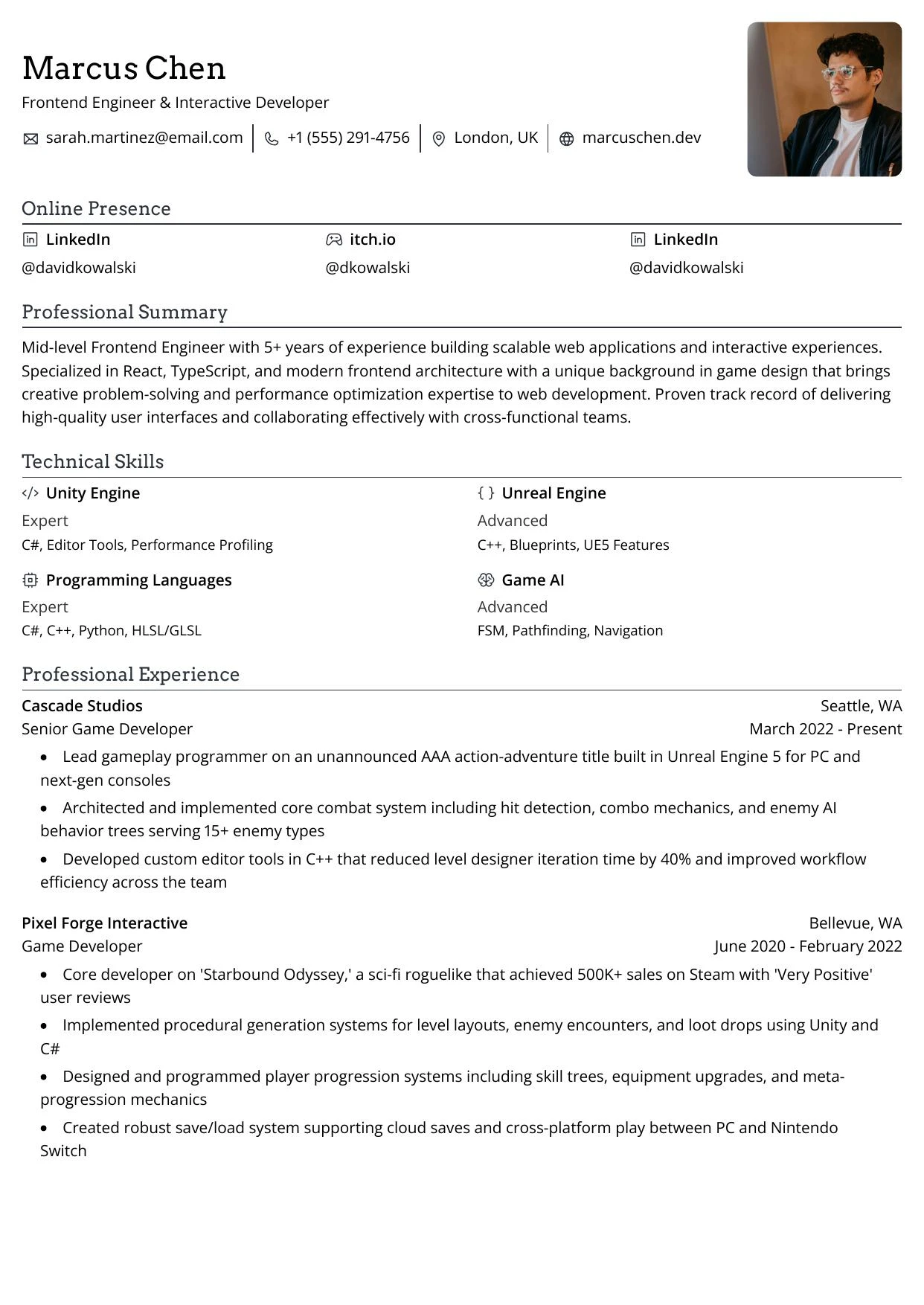
Vista
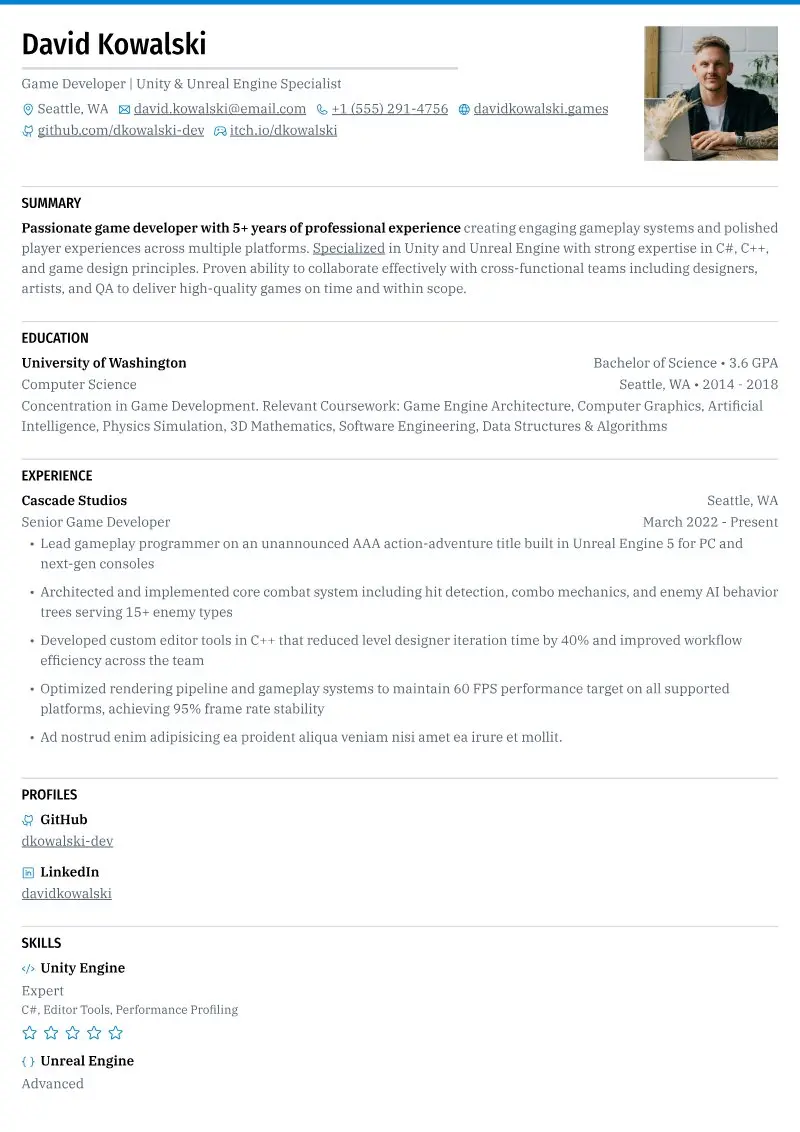
Crest
Adjust the template
The other Design tab groups change the template’s details:
See Designing your resume, Selecting the right page format and Using custom styles.