

- Fills application forms in your browser. With Fill in my browser on an application, HireSweep opens the employer’s form in a new tab and fills it through the extension. See Applying to jobs.
- Reads LinkedIn jobs. LinkedIn shows a job’s full posting and the employer’s apply link only to signed-in members, so the extension reads them in the browser where you are already signed in. The posting’s text, title, company, location, workplace type and employment status, and the apply link, are sent to your HireSweep. Your LinkedIn session does not leave your browser.
- Reads your LinkedIn job search. When you select Search on Discover with LinkedIn ticked, the extension opens your LinkedIn job search in a background tab of your browser and, for each Target, reads up to 25 jobs from the first two pages of results, then closes the tab. Each job’s link, title, company, location and posting date are sent to your HireSweep. It runs only when you select Search, one search at a time, and never in the background or on a repeat. HireSweep’s servers never contact LinkedIn.
The extension works in Chrome on a computer. It doesn’t run on phones or tablets.
Install it
Open Settings → Browser extension, under Job applications. The HireSweep for Chrome row shows whether the extension is installed.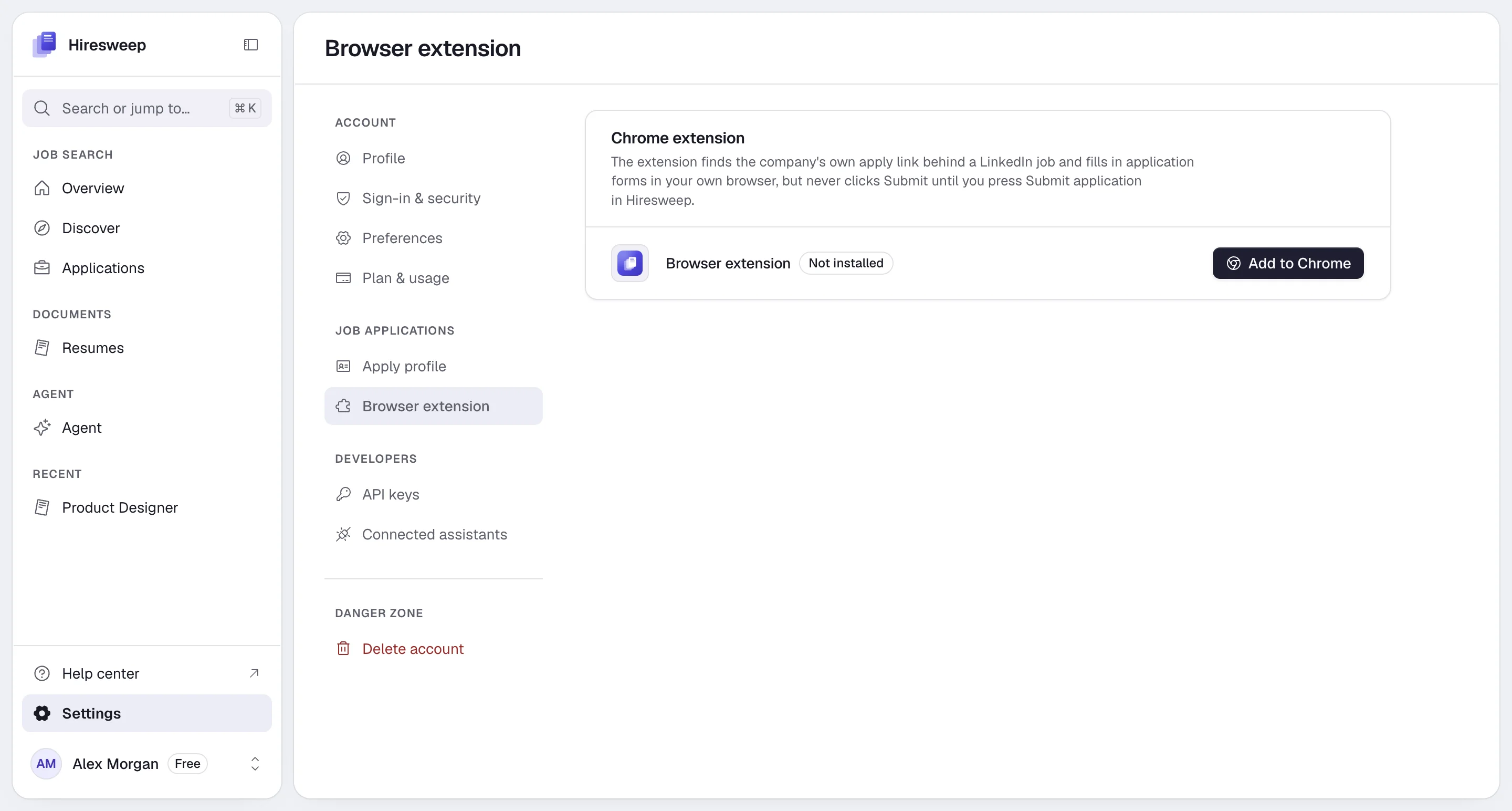
- Chrome Web Store
- Download
1
Select Add to Chrome
Select Add to Chrome. The Chrome Web Store opens.
2
Add the extension
Select Add to Chrome in the store and confirm. Chrome keeps the extension up to date.
3
Reload HireSweep
Go back to the HireSweep tab and reload it. The page shows Installed with the version number.
Allow filling on job sites
Chrome asks your permission before an extension can work on other websites. Filling forms needs that permission for job sites:- Select the HireSweep icon in Chrome’s toolbar (pin it from the puzzle-piece menu if you don’t see it).
- Select Allow filling on job sites and accept Chrome’s prompt.
The extension popup
Selecting the toolbar icon shows:- Whether you are signed in to LinkedIn. Sign in to LinkedIn in the same browser to apply to LinkedIn jobs.
- Whether filling forms on job sites is allowed, with Allow filling on job sites until it is.
- The extension’s version and Open HireSweep.
What the extension can and can’t do
- It only answers HireSweep pages. Other websites can’t talk to it.
- It works only in the tab HireSweep opened for the application, or, for a LinkedIn job search, in the tab it opens for that search and closes afterwards.
- It never presses an employer’s submit button unless you select Submit application in HireSweep, or your submit mode allows sending on its own.
- It doesn’t hand your LinkedIn session, cookies or password to HireSweep. For a LinkedIn job it sends the posting and the employer’s apply link, and for a job search the jobs listed, and nothing else from LinkedIn. It touches nothing else on LinkedIn: no profile, feed, messages or connections.
- It holds no HireSweep password or keys.
Troubleshooting
The card still says Not installed
The card still says Not installed
Reload the HireSweep tab after installing. Check that the extension is turned on in
chrome://extensions.HireSweep warns about an older copy
HireSweep warns about an older copy
An older copy of the extension, from before HireSweep’s rename, is installed next to the new one. Remove the old one
in
chrome://extensions so the right one answers.Fill in my browser doesn't appear
Fill in my browser doesn't appear
The Applied step shows Install extension or Update extension when the extension is missing or too old.
Install or update it, then reload the page.
LinkedIn jobs can't be applied to
LinkedIn jobs can't be applied to
Sign in to LinkedIn in the same browser. Jobs that only offer LinkedIn Easy Apply are filled in the job’s
LinkedIn page: HireSweep fills the dialog page by page, attaches this application’s resume, and stops for you to
select Submit application.