# Choosing a template
> Pick one of Hiresweep's 16 resume templates in the Template Gallery and see which ones are ATS-friendly.
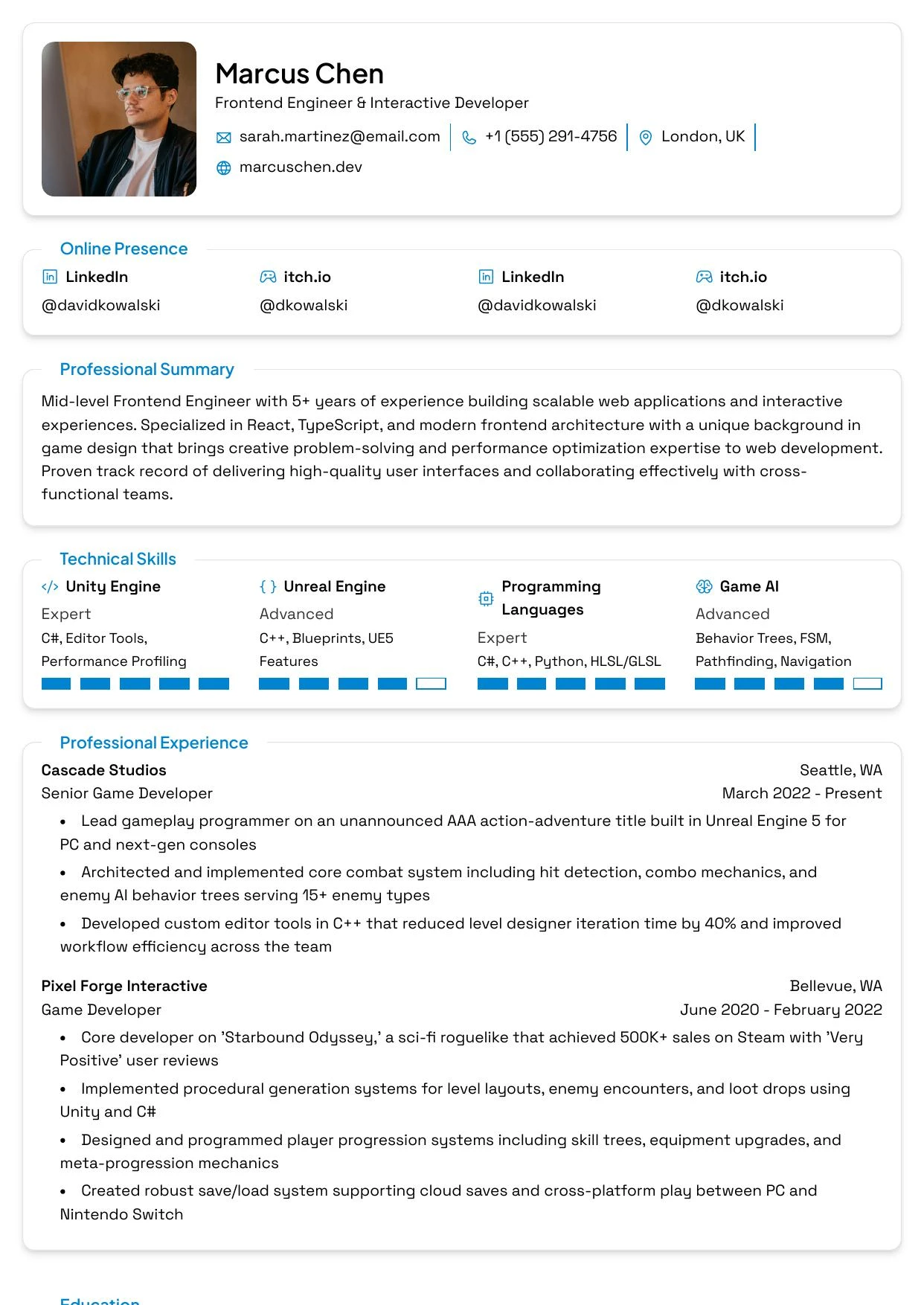
A template sets your resume's overall look: header style, columns, dividers and accents. You can change it at any time; your content stays as it is.
## Change the template
In the builder, select the **Design** tab at the top of the Edit panel. **Template** is the first group.
The group shows your current template's preview, name, description and tags. Select the preview (**Change template**) to open the **Template Gallery**.
Select a template. The gallery closes and the preview updates.
Check how your content flows in the new design. You may want to adjust the [layout, fonts or colors](https://docs.hiresweep.com/guides/designing-your-resume) afterwards.
Judge a template with your own content, not an empty page. What looks good with sample data can break across pages
with a longer work history.
## ATS-friendly templates
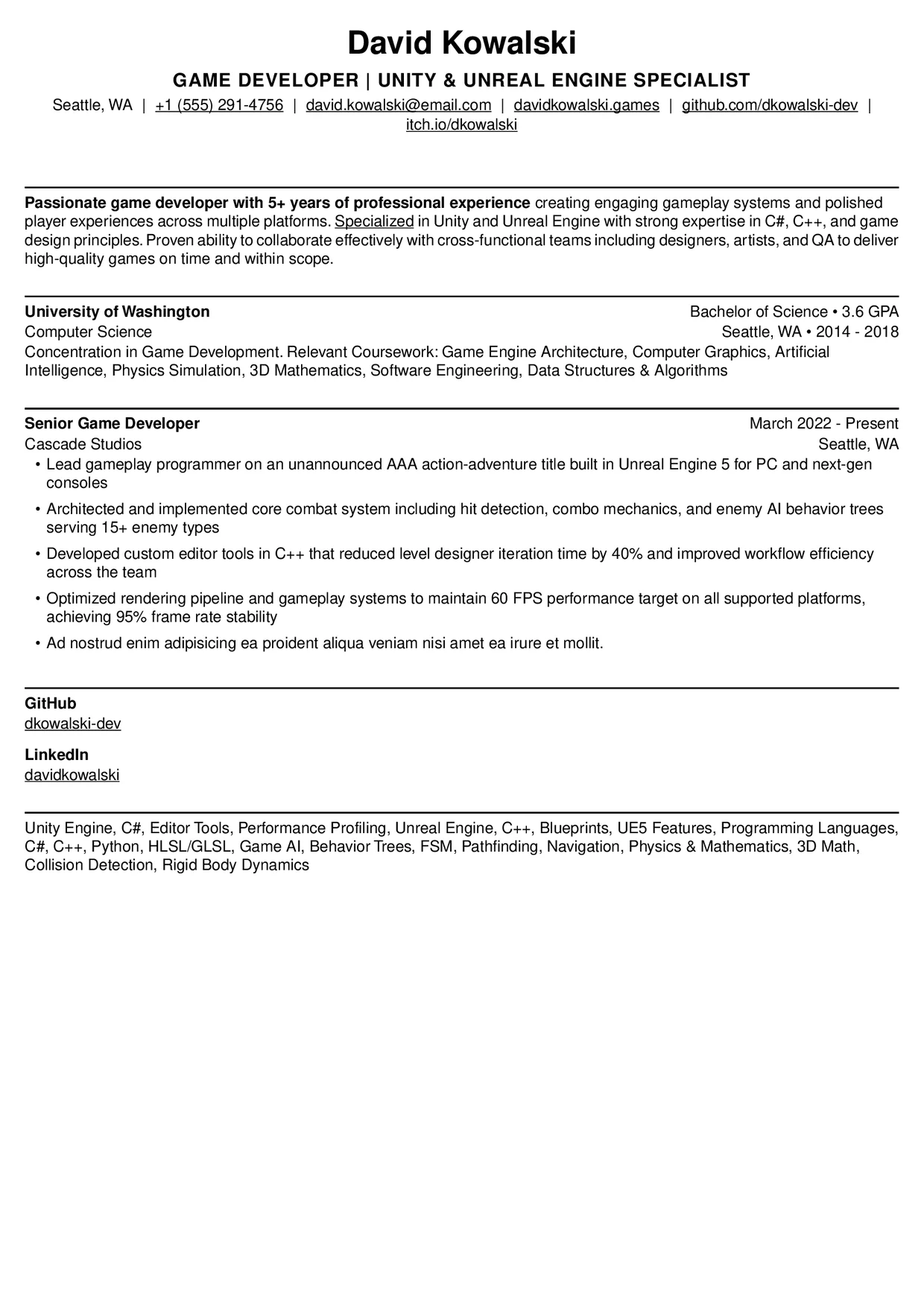
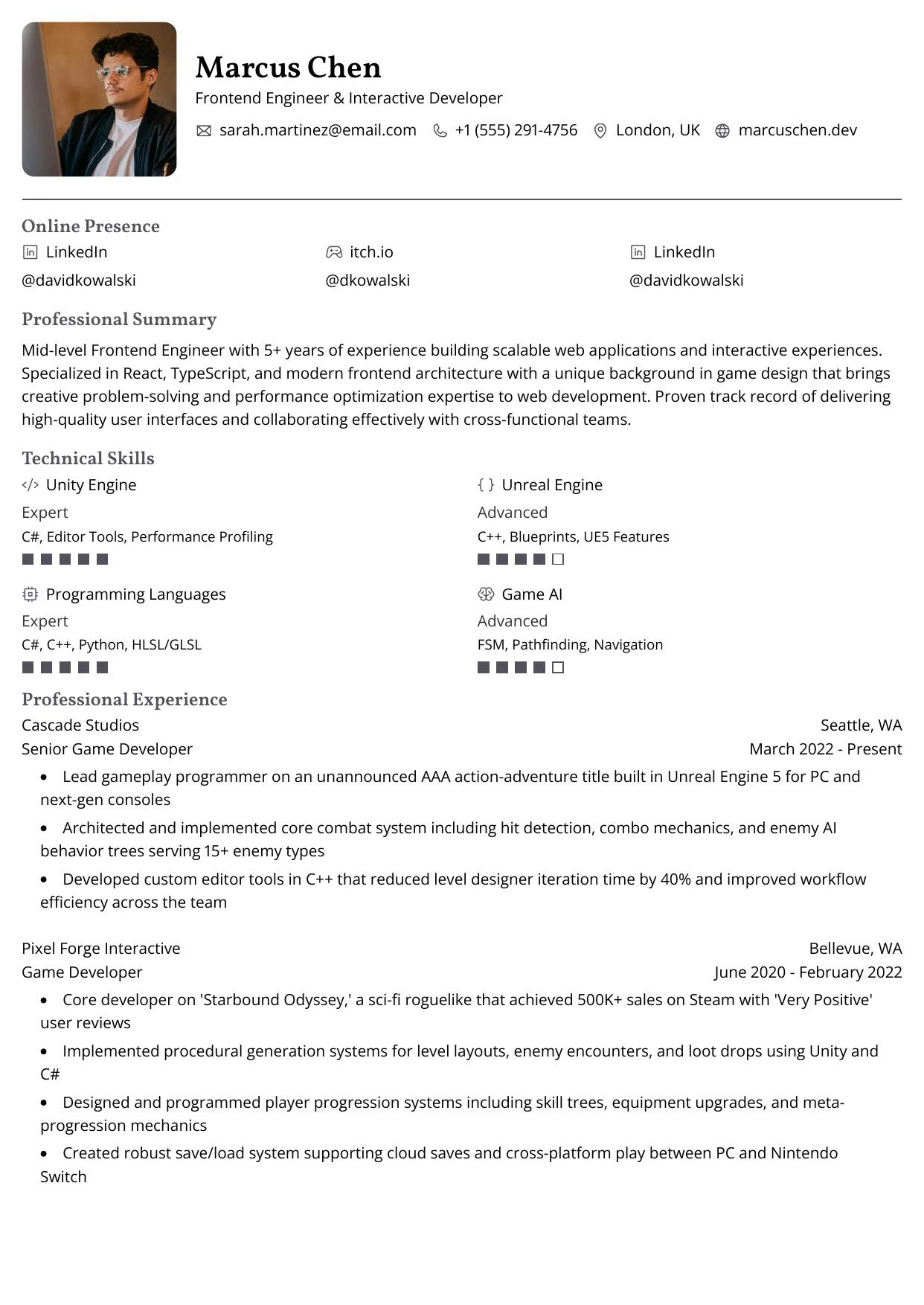
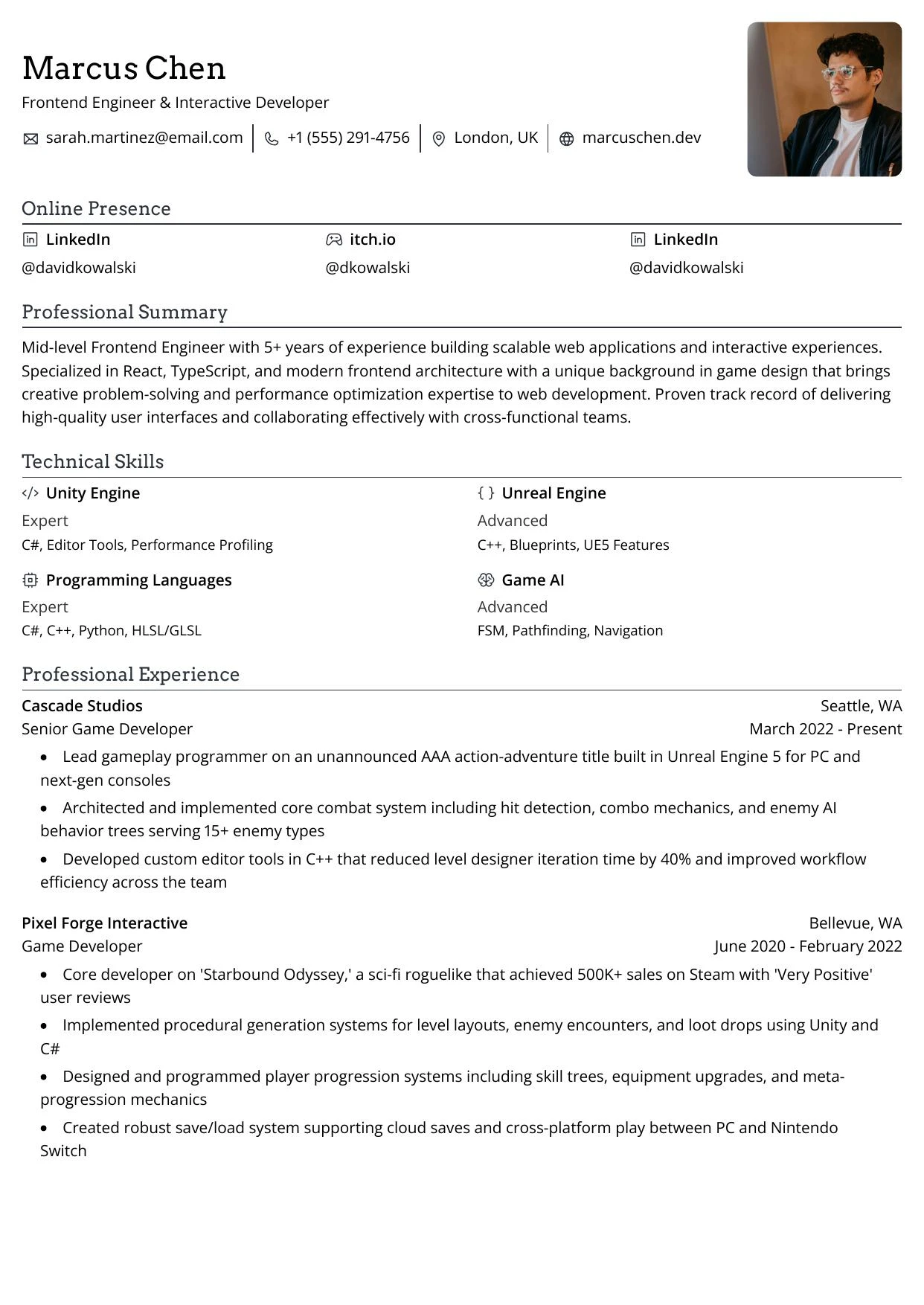
Templates marked **ATS-friendly** in the gallery use plain, single-flow text with standard headings, so applicant tracking systems read every section in order. Prefer one of these when you apply through online portals.
## All templates
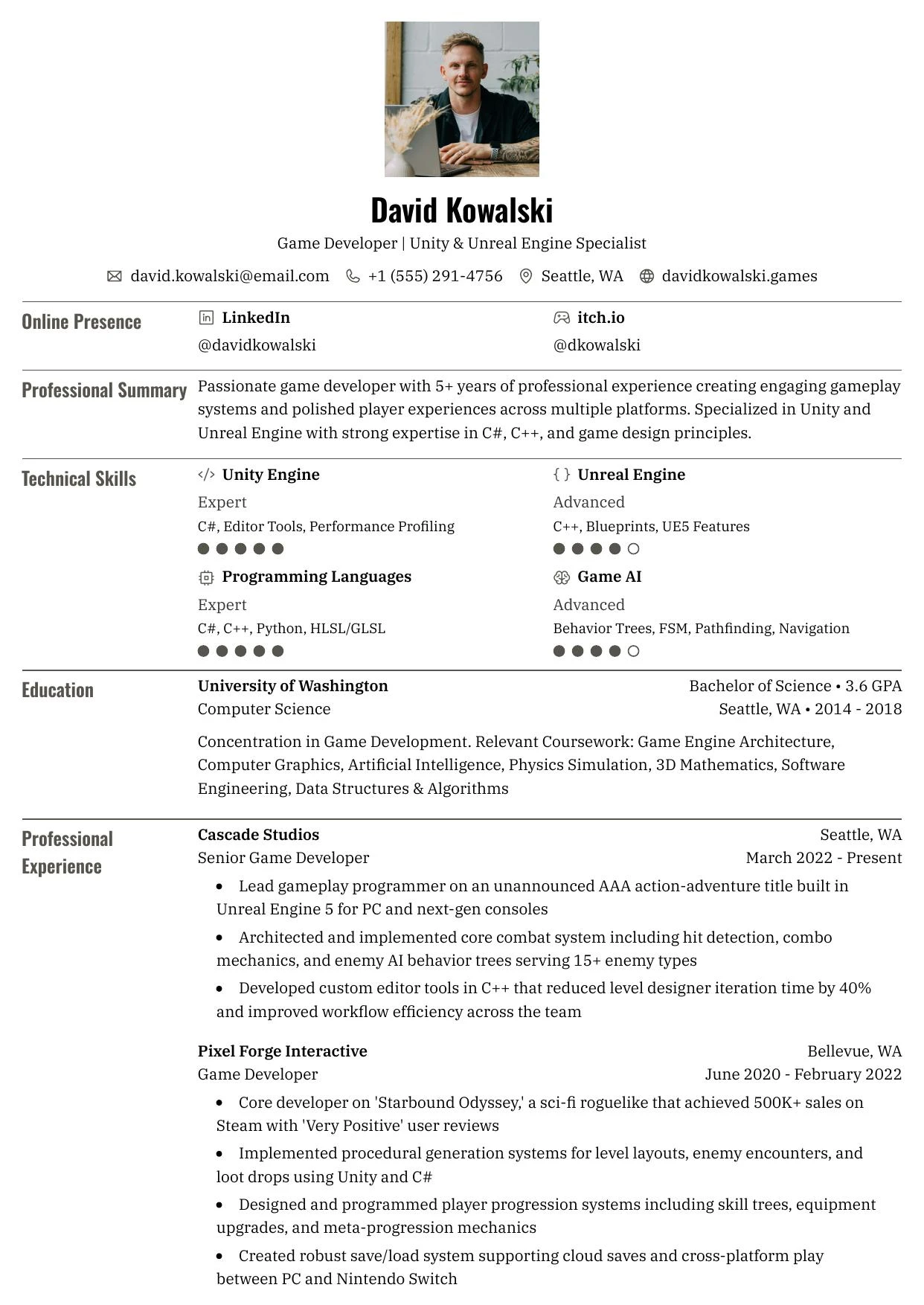
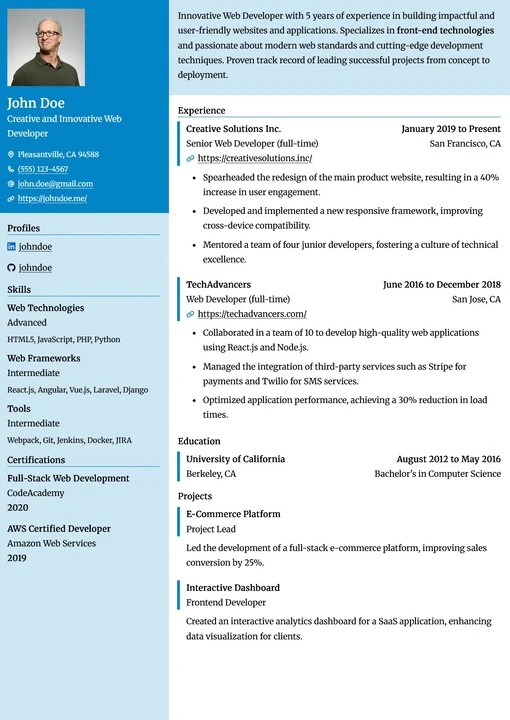
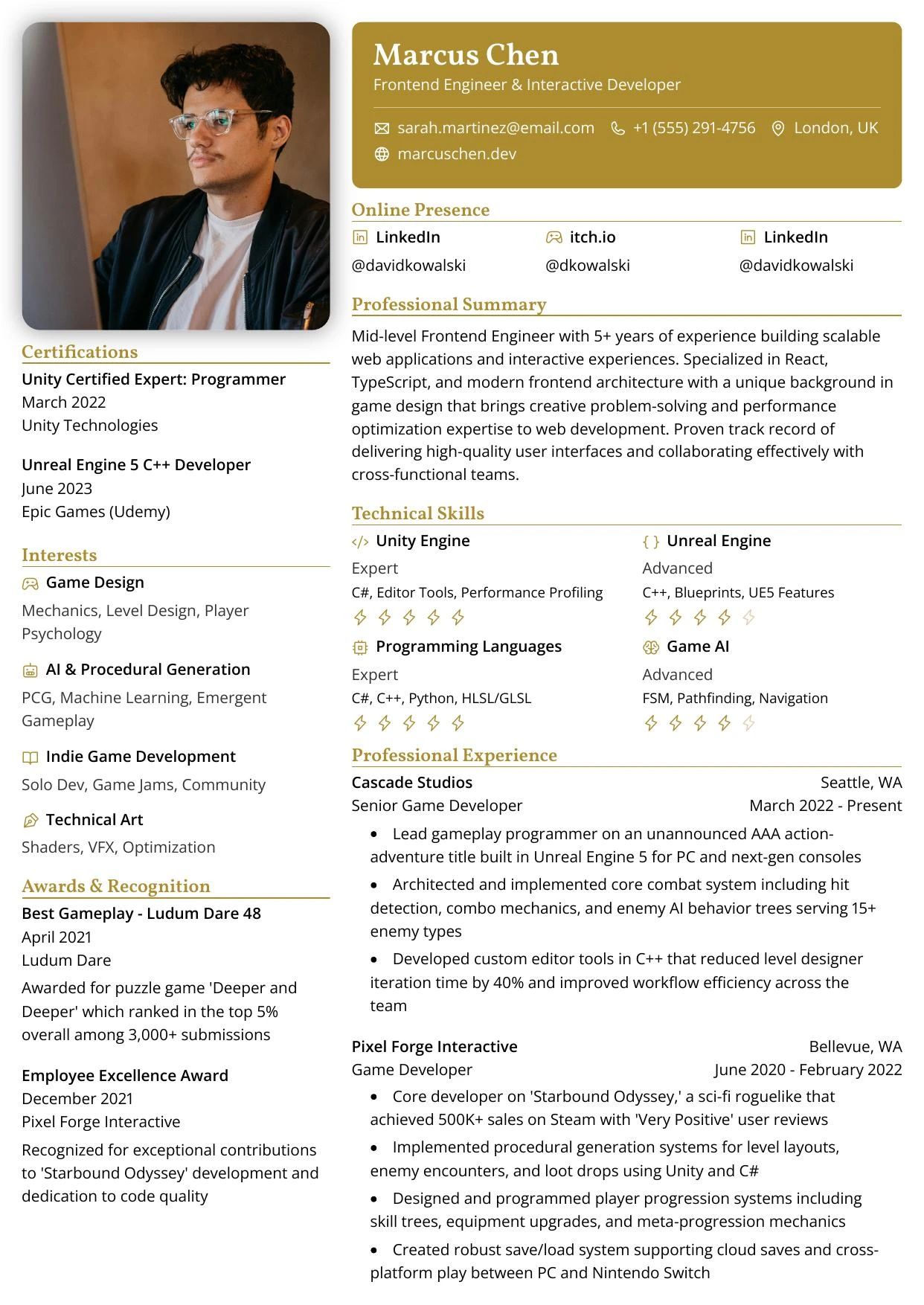
New resumes start with **Ridge**. The sample resume uses **Beacon**.
| Template | Columns | ATS-friendly | Suits |
| --- | --- | --- | --- |
| **Compass** | Single | Yes | Skill-heavy or senior resumes; all skills in one compact block |
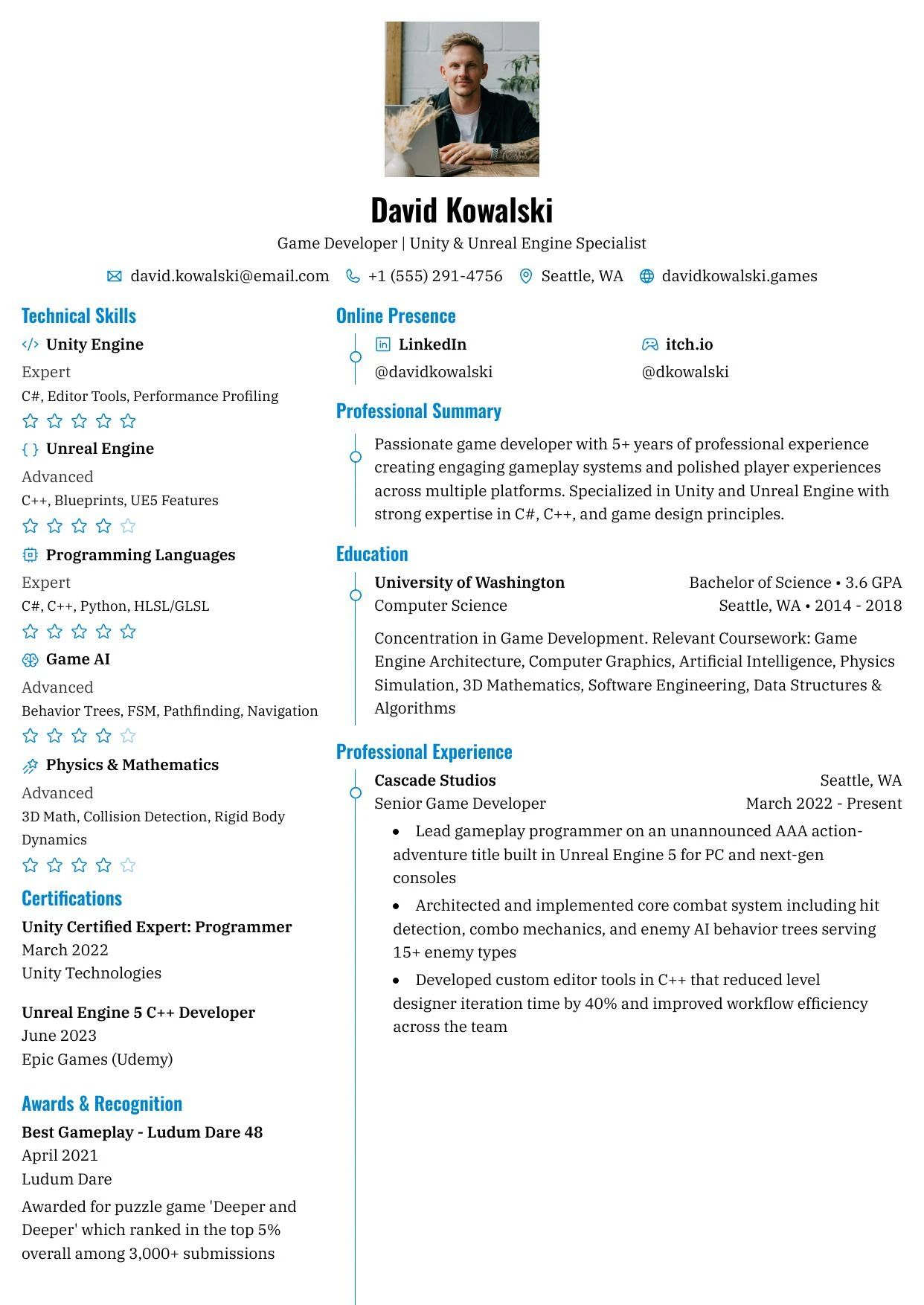
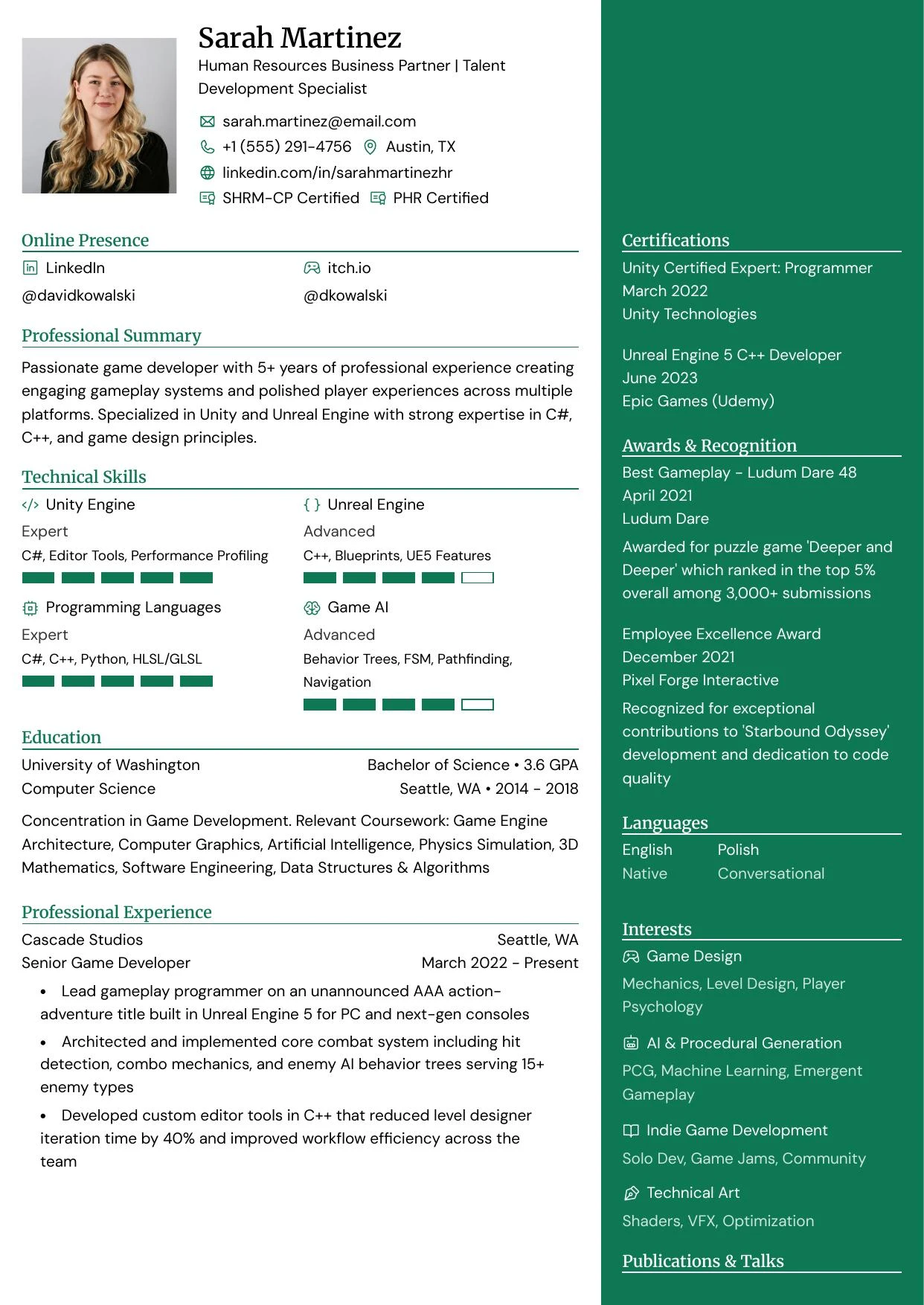
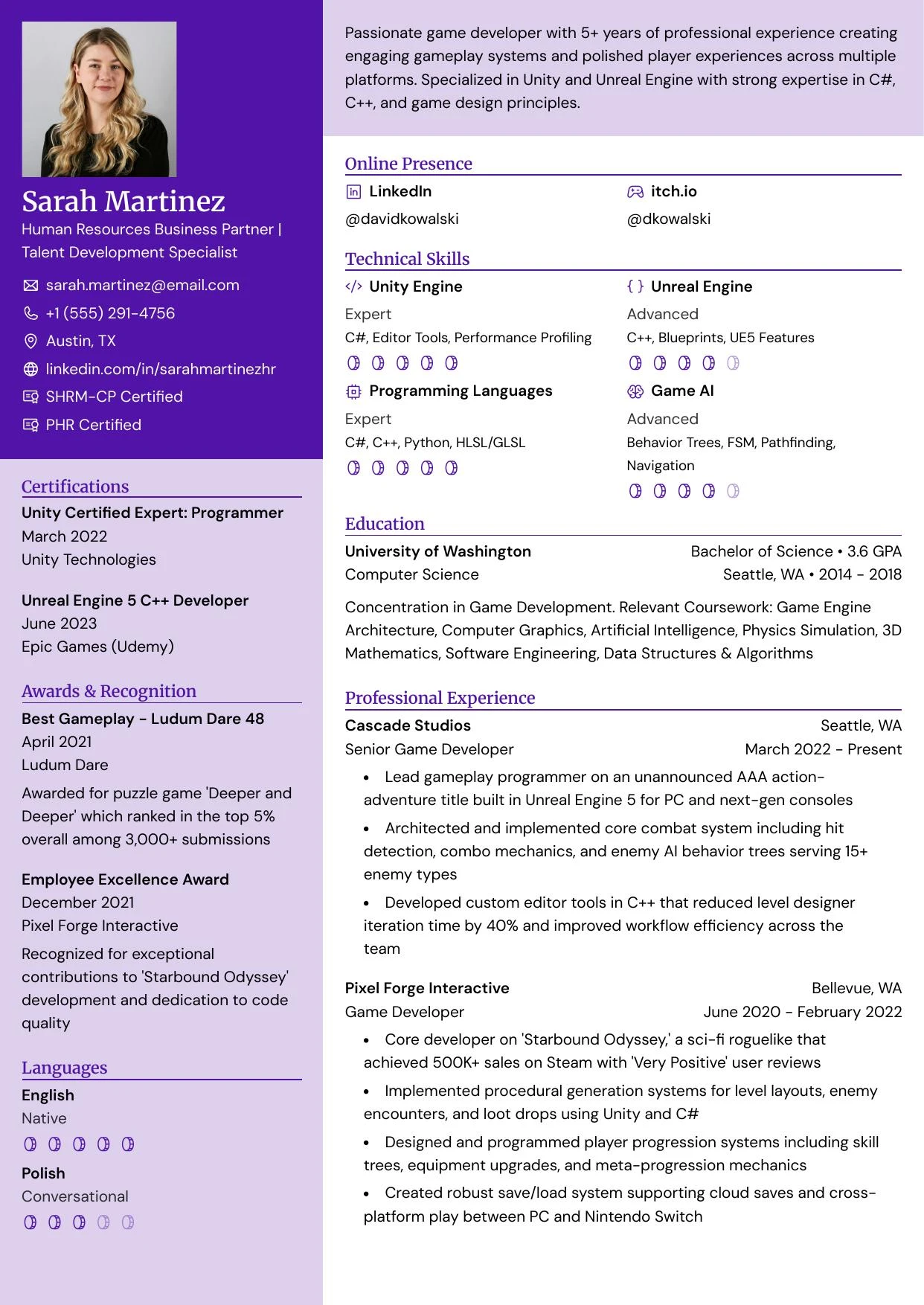
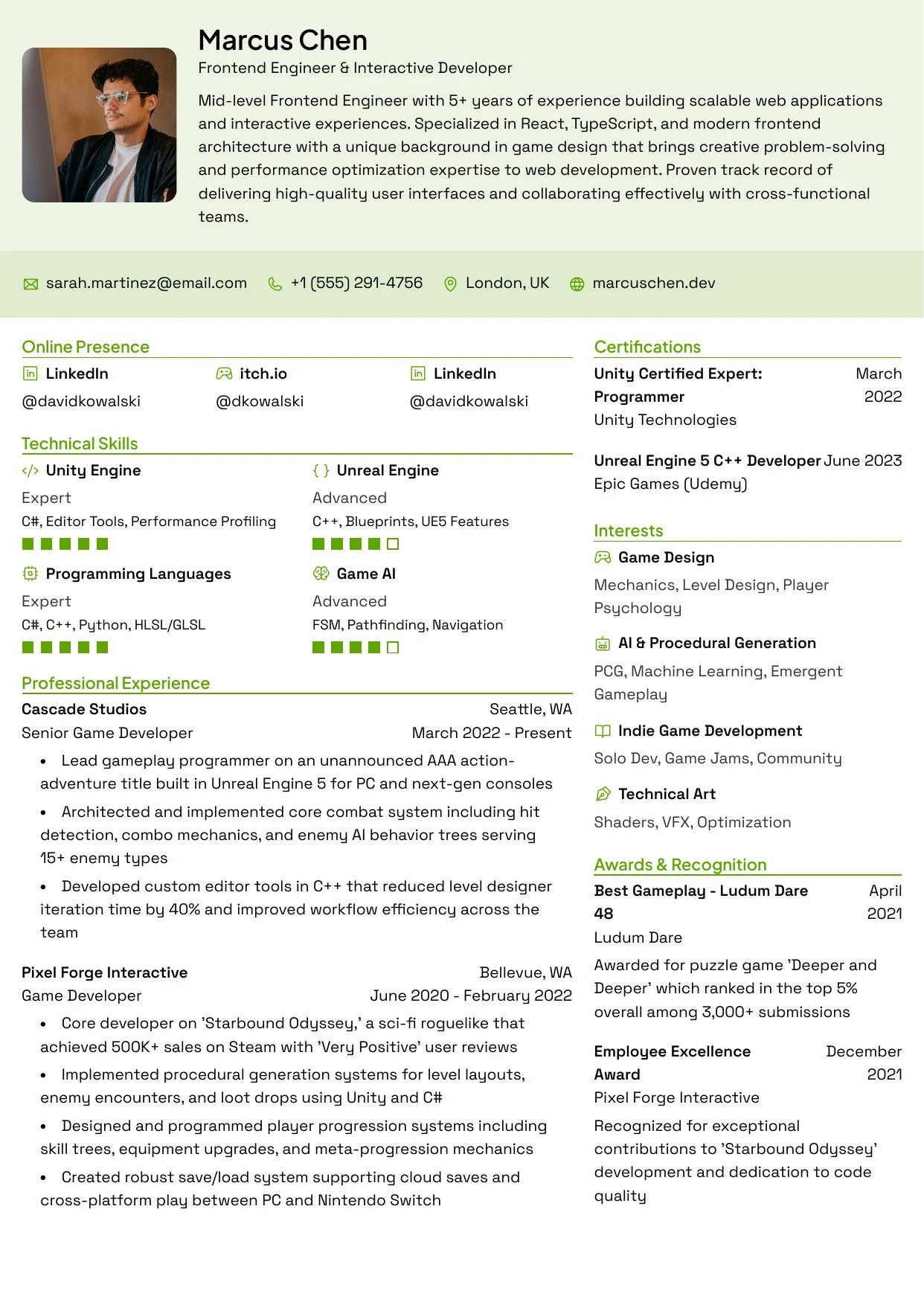
| **Beacon** | Two | No | Creative or tech roles; bold colored sidebar and skill bars |
| **Bastion** | Two | Yes | Corporate, finance or consulting; subtle section dividers |
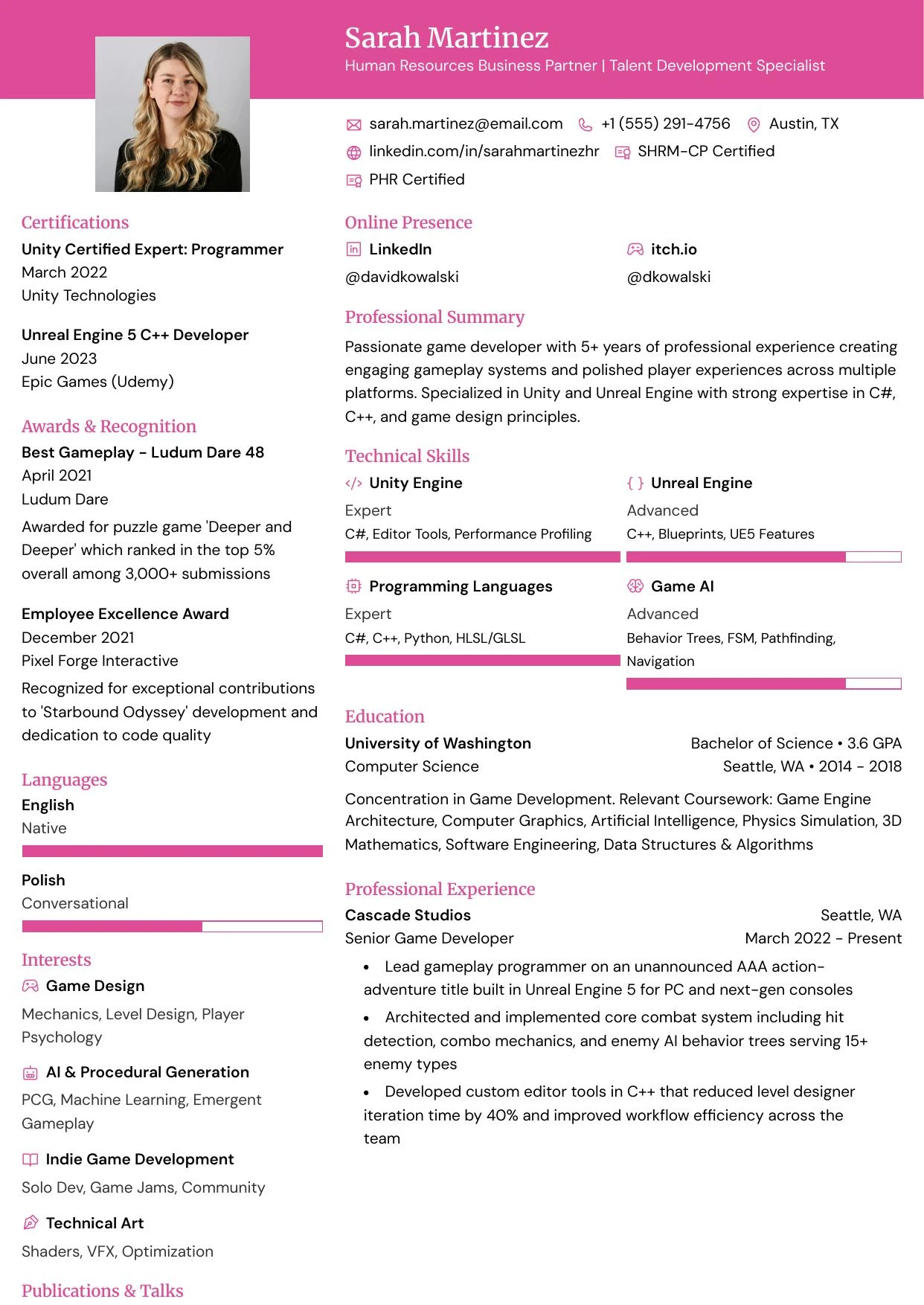
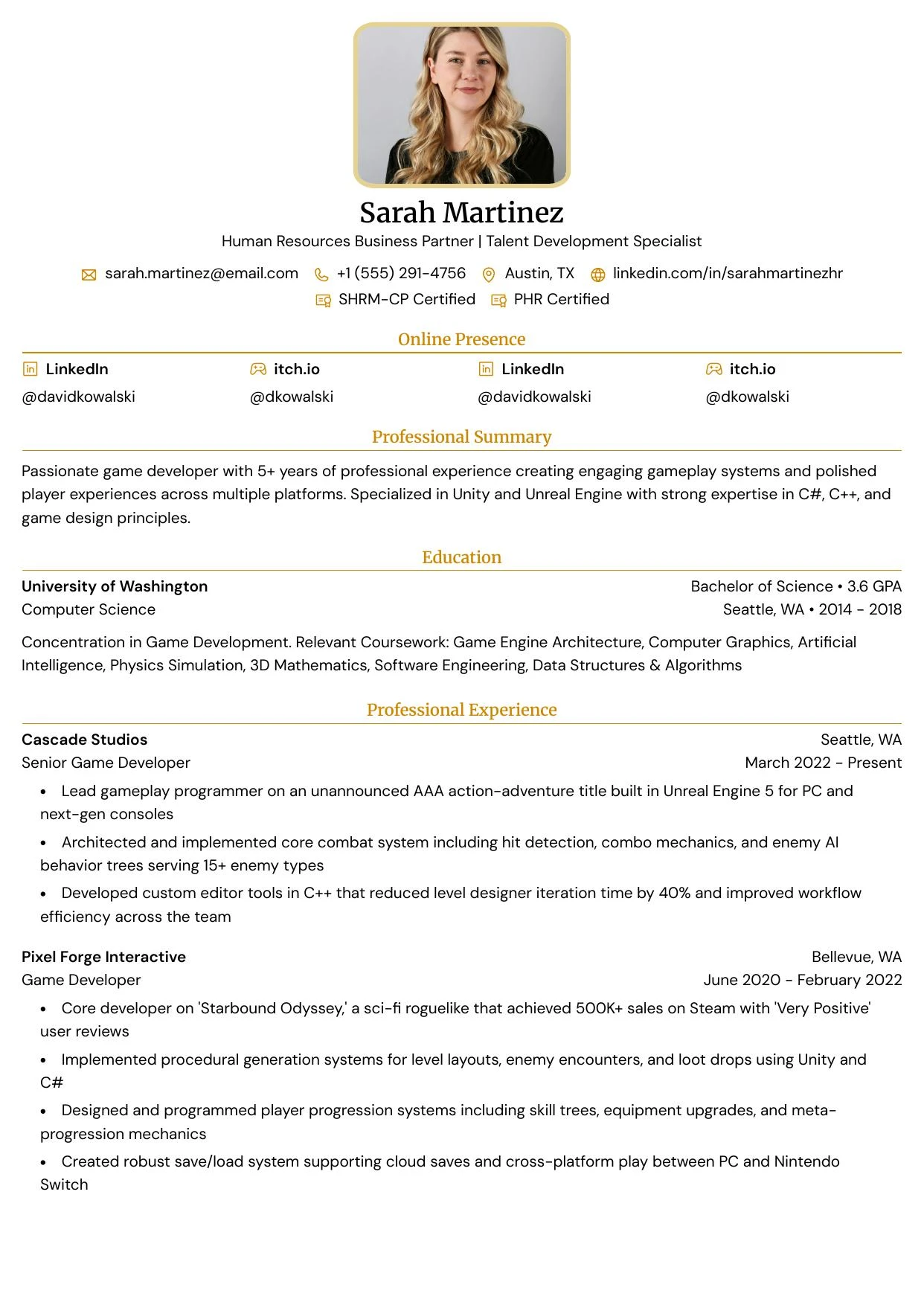
| **Haven** | Two | No | Marketing, HR or client-facing roles; circular photo |
| **Summit** | Two | No | Developers, data scientists, technical PMs; dark teal sidebar |
| **Atlas** | Two | Yes | Traditional industries and text-only portals; no decoration |
| **Meridian** | Two | No | Business analysts or operations; accent colors |
| **Cardinal** | Two | No | Legal, finance or executive roles; light grey sidebar |
| **Cove** | Single | Yes | Entry-level and internships; magenta left border |
| **Vantage** | Single | Yes | Senior or enterprise positions |
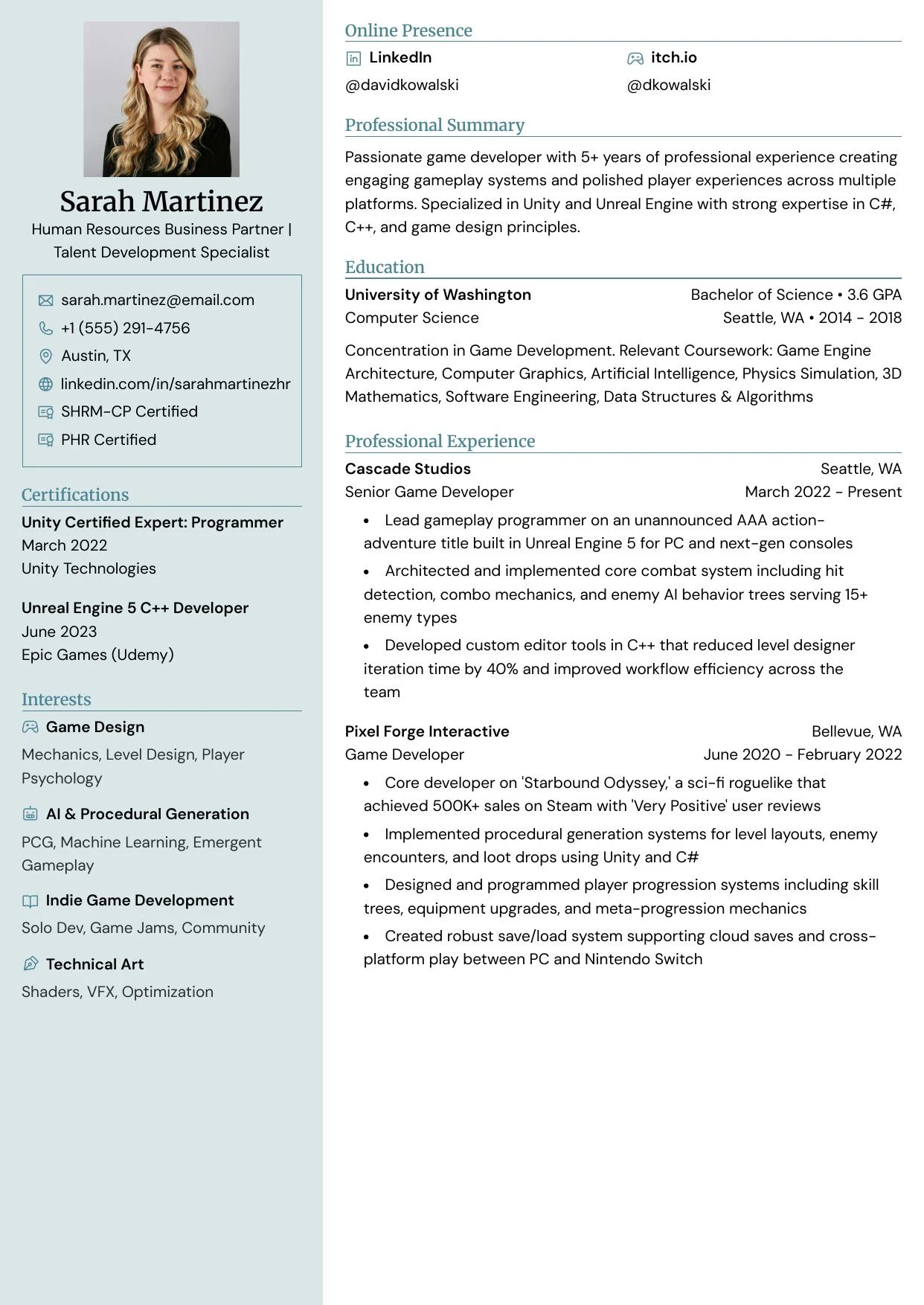
| **Grove** | Two | No | Sustainability, healthcare or nonprofit; muted sidebar |
| **Tide** | Single | Yes | CN, JP and KR resume conventions; inline entry header |
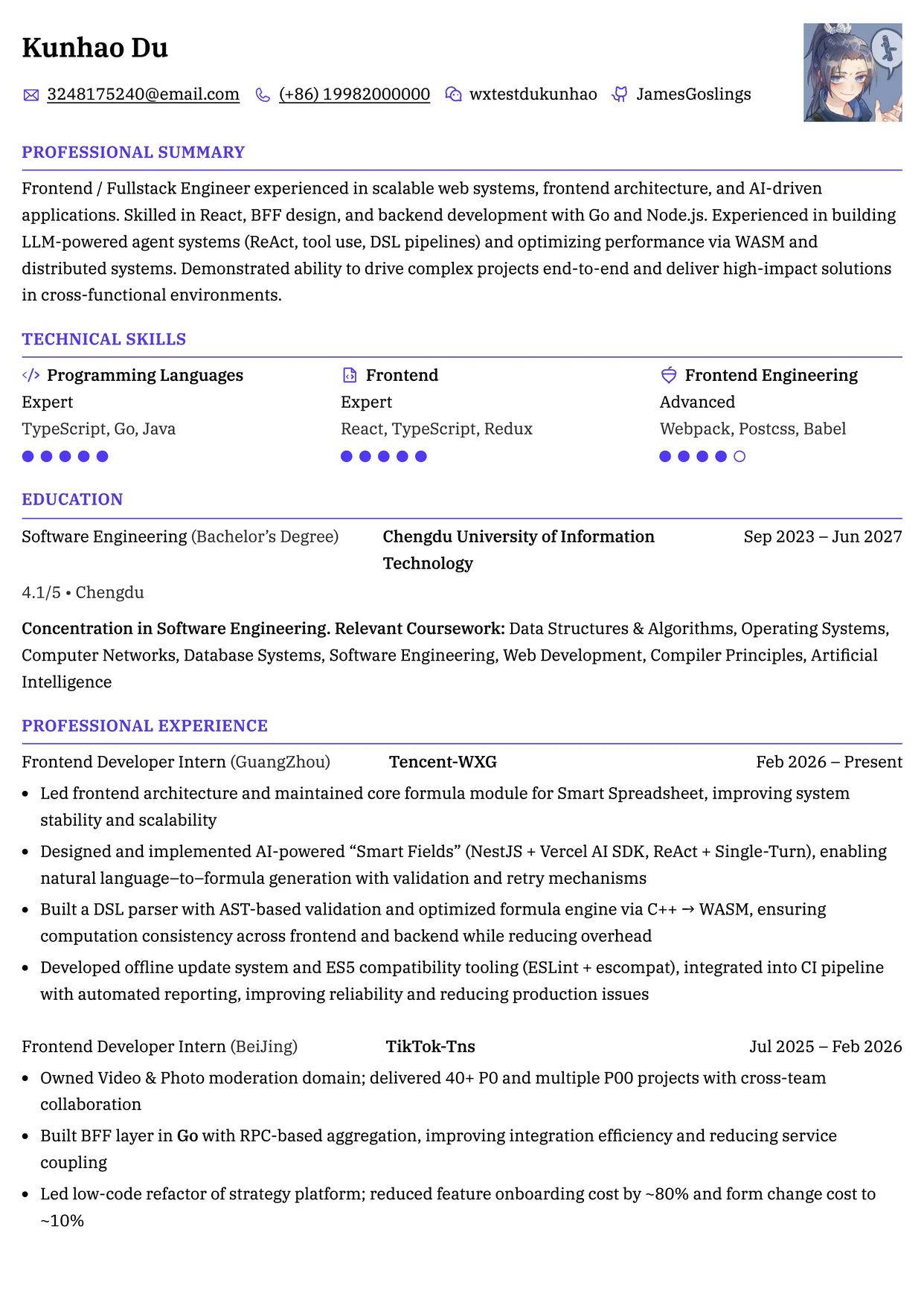
| **Ridge** | Single | Yes | Any professional or technical role; clean grid |
| **Drift** | Two | No | Creative, editorial or junior roles |
| **Vista** | Single | Yes | Designers and content creators; lots of white space |
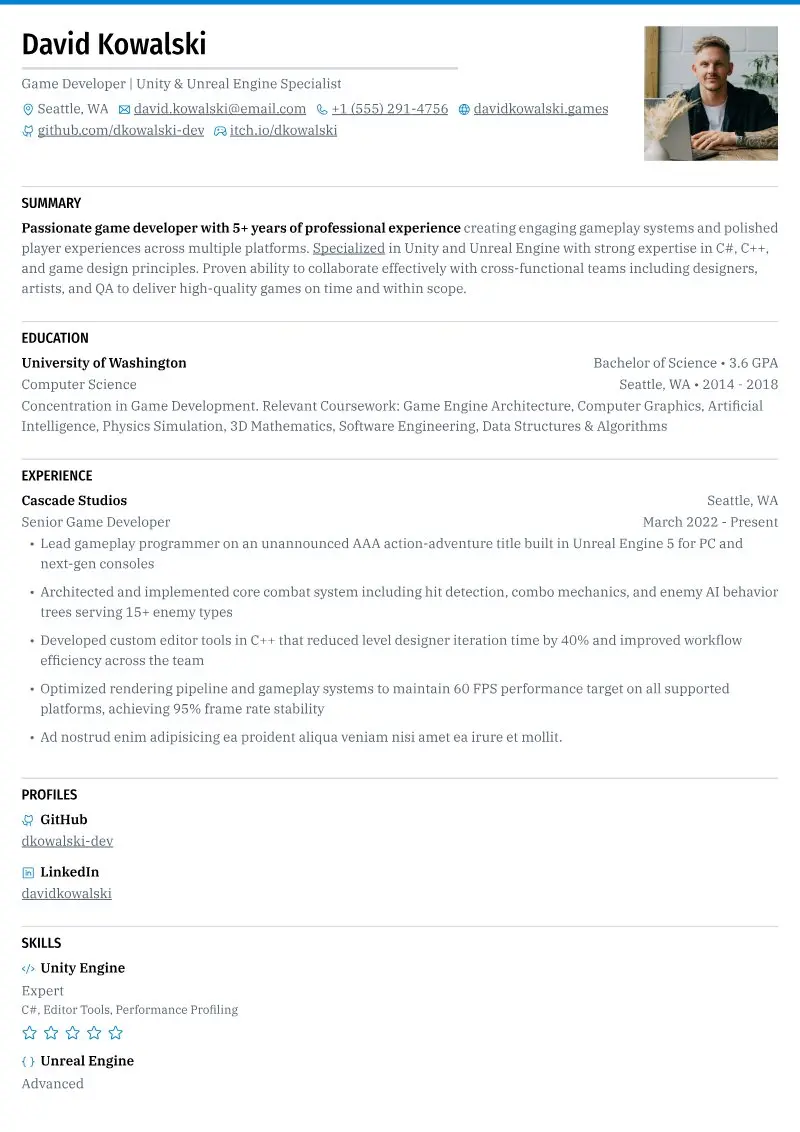
| **Crest** | Single | Yes | Executive, consulting or startup; uppercase headings |
All templates support the same sections and settings. They differ only in how they present your content. You can also browse them without signing in at [hiresweep.com/templates](https://hiresweep.com/templates).
## Adjust the template
The other Design tab groups change the template's details:
| Group | What it changes |
| --- | --- |
| **Layout** | Pages, which sections go in the main column or sidebar, full-width pages and sidebar width |
| **Typography** | Fonts, weights, sizes and line height for body text and headings |
| **Design** | Primary, text and background colors and the style of skill and language levels |
| **Page** | Paper format, margins, spacing between sections, icons and resume language |
| **Custom Styles** | Targeted rules for one section or one part of a section |
See [Designing your resume](https://docs.hiresweep.com/guides/designing-your-resume), [Selecting the right page format](https://docs.hiresweep.com/guides/selecting-page-format) and [Using custom styles](https://docs.hiresweep.com/guides/using-custom-styles).